Adaptive Brightness is a feature found in most smartphones that intelligently adjusts the screen brightness based on the ambient lighting in your environment. It can be a handy tool for both battery conservation and visual comfort. But how exactly does it work, and how can you make the most out of it? Let’s dive in.
What is Adaptive Display?
Adaptive Display is another term for Adaptive Brightness, and it aims to provide the optimal screen brightness for your current surroundings. By using the front-facing camera or dedicated light sensors, the phone can detect the level of light in your environment and adjust the screen brightness accordingly. For instance, in a dark room, your screen will dim to save battery and reduce glare. Conversely, stepping outdoors on a sunny day will cause the screen to become brighter, making it easier to read.
Why is Adaptive Brightness Useful?
Battery Savings
One significant advantage of adaptive display technology is in extending your device’s battery life. Many users have the habit of setting the brightness level at maximum, not considering that in darker settings, a lower brightness would suffice. Adaptive Brightness ensures that your screen uses only as much power as necessary to provide a comfortable viewing experience, thereby conserving battery.
Comfort
Adaptive Brightness also caters to personal comfort. Too much brightness in a low-light setting can be harsh on the eyes, whereas too little brightness in a bright environment makes it difficult to see. This feature maintains an optimal level without requiring manual adjustments.
How to Activate Adaptive Brightness
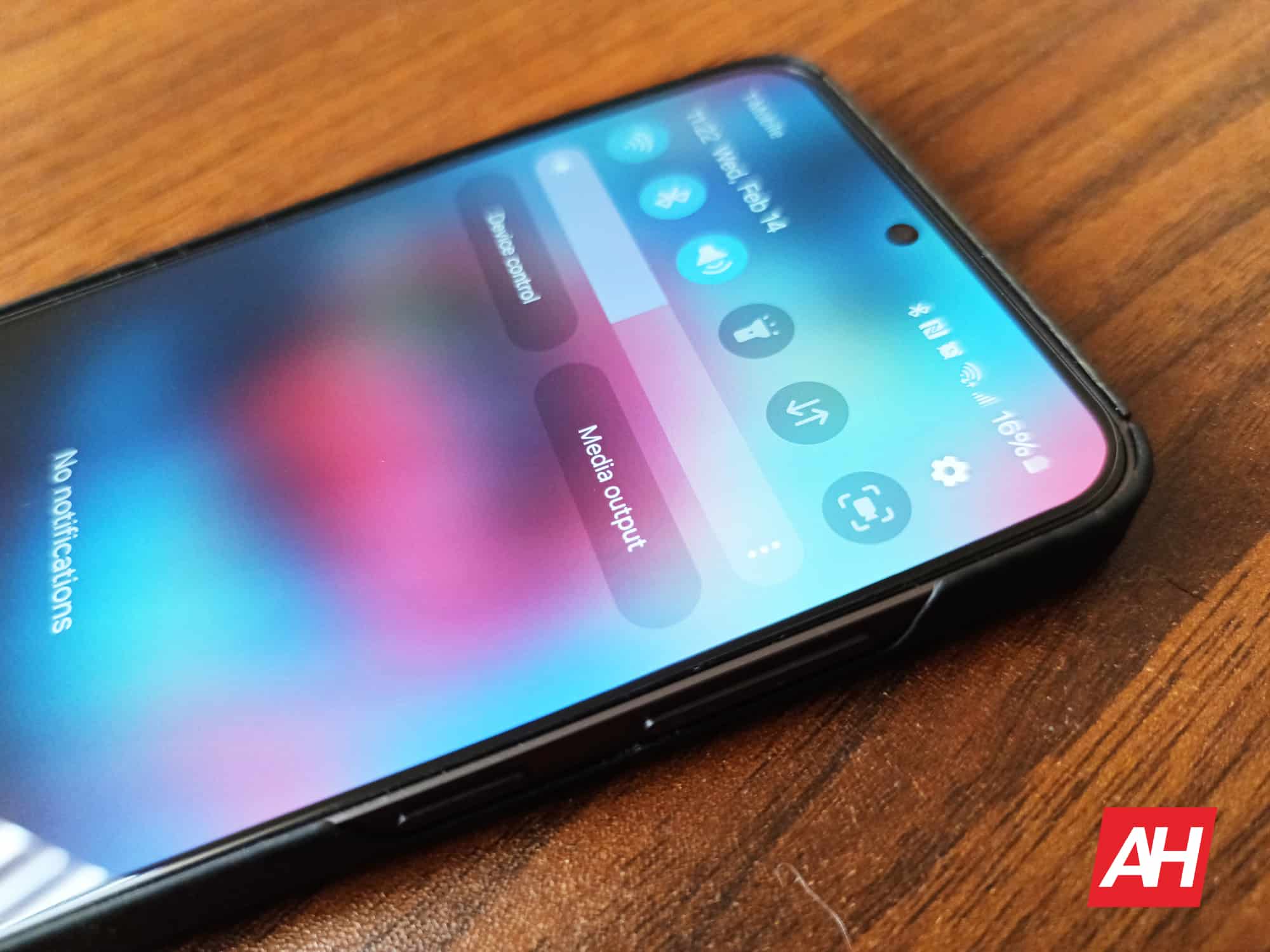
The steps to find and enable Adaptive Brightness may vary slightly depending on the brand and operating system of your smartphone. For many devices, you can find a checkbox for Adaptive Brightness right under the brightness slider when you pull down the notification shade. Tapping this will activate the feature.
For phones with a stock version of Android, you would need to go into your settings. Pull down the notification shade and press the gear icon to open the settings menu. Scroll down to the “Display” category. Here, Adaptive Brightness is usually one of the first options available. Simply toggle it on to allow your phone to adjust the brightness based on the detected ambient light.
Customizing Adaptive Brightness
Even with Adaptive Brightness enabled, you can still manually adjust the brightness slider to fine-tune the screen’s luminosity. Over time, some smartphones can learn from these manual adjustments and predict your preferred brightness levels in different lighting conditions.
Adaptive Display Settings on Samsung Phones
Samsung Galaxy phone users can easily locate and control the Adaptive Brightness feature. Generally found pre-enabled, it can be toggled on or off via the notification shade — accessible by swiping down from the top of the home screen — or within the Display settings in the main settings menu. On the Display settings page, Adaptive Brightness can typically be found under the Dark Mode setting.
Other Helpful Display Settings
While Adaptive Brightness is a great feature, there are other settings that you can tweak to enhance your device usage. These include adjusting the screen timeout duration to ensure your phone doesn’t stay on unnecessarily long after inactivity, and enabling a blue light filter for nighttime reading to reduce eye strain and improve sleep quality. Manufacturers may call this feature by various names, such as “Night Light” or “Reading Mode”.
By using Adaptive Brightness and other display settings wisely, you can optimize your smartphone’s screen for better visibility, comfort, and battery efficiency.


