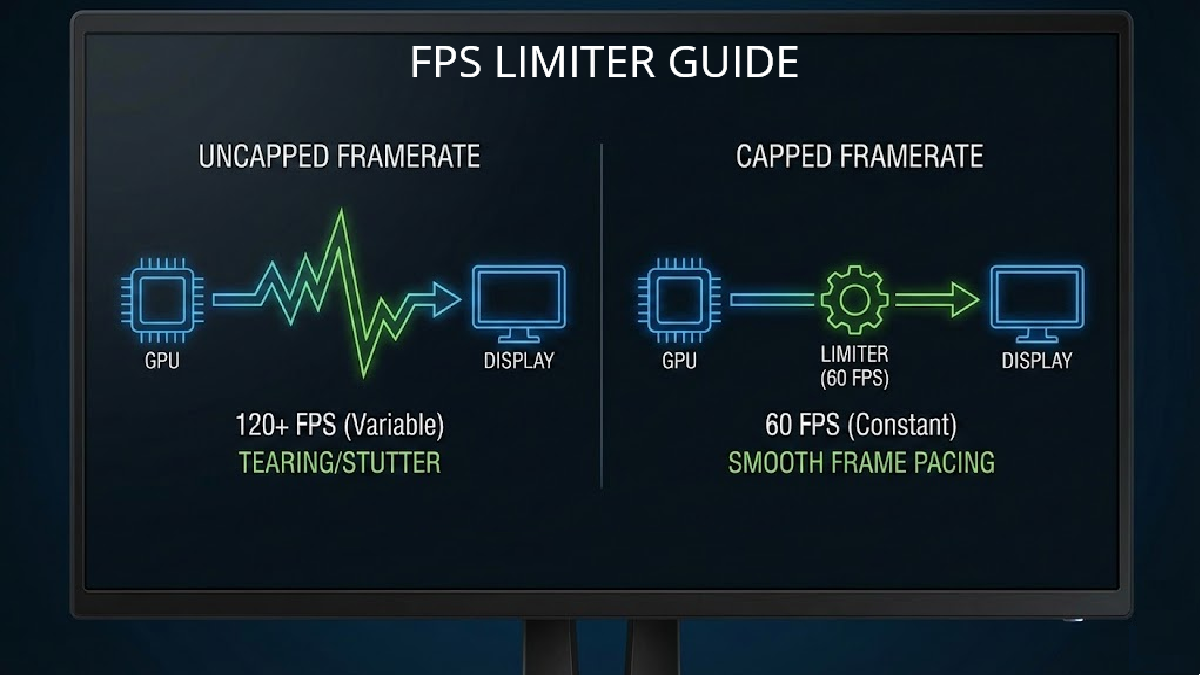
In modern PC gaming, framerates, frametimes, and latency aren’t just stats you glance at after a benchmark run. They directly determine how smooth a game looks while you move the camera, how consistent it feels during combat, and how quickly the game reacts when you click, aim, or dodge. That’s why chasing a higher average FPS doesn’t always bring the best experience. If frame delivery is uneven, you can still get jittery motion and a “not quite right” feel even when the FPS counter looks impressive.
This is where framerate limiters become surprisingly valuable. On paper, limiting FPS sounds like you’re deliberately holding your hardware back. In practice, an uncapped framerate can push the GPU and CPU harder than necessary, driving up heat and fan noise while potentially creating inconsistent frametimes. It can also make screen tearing more obvious when the GPU outputs frames far faster than your monitor can display them. A smart FPS cap can reduce unnecessary load, stabilize frame pacing, clean up the presentation, and in many setups even improve responsiveness by preventing the system from getting backed up with queued frames.
The important detail is that not all framerate limiters work the same way. Some are built directly into a game, some come from the graphics driver, and others are handled by external tools. Each option interacts differently with the rendering pipeline, and those differences can impact three things most players actually feel: smoothness, consistency, and input latency (the delay between your input and the result showing on screen).
To separate “it feels better” from real measurable results, the testing approach here focuses on repeatable metrics captured with CapFrameX, a benchmarking tool that can log a wide range of performance data. For this guide, the emphasis is on a handful of practical measurements: average FPS for raw throughput, 1% and 0.1% low averages plus adaptive standard deviation to highlight frametime consistency and stability, and average PC latency to reflect responsiveness. All testing is centered on a single modern, demanding, and well-optimized title: Cyberpunk 2077. The goal isn’t just to identify which limiter produces the highest FPS, but which one delivers the best real-world trade-offs for smooth gameplay and low latency.
The limiter methods considered include classic VSync, the game’s built-in framerate cap, the NVIDIA driver’s Max Frame Rate option, NVIDIA Reflex Low Latency, and multiple limiter styles available through popular third-party solutions such as RTSS (including async, front-edge sync, and back-edge sync), along with the more advanced Special K limiter. By comparing these options under the same conditions, it becomes much easier to choose the right approach for your own playstyle—whether you care most about consistent frame pacing, the lowest possible latency, or a balance of both.
Vertical Synchronization (VSync)
VSync, short for vertical synchronization, is the traditional method many players enable first when they notice screen tearing. Tearing happens when the GPU presents a new frame in the middle of a monitor refresh, splitting the image into visible horizontal breaks. VSync stops that by forcing frame presentation to line up with the display’s refresh cycle—essentially making the GPU wait until the monitor is ready.
The upside is simple: it’s highly effective at eliminating tearing and can make motion look calmer when the framerate is stable. The trade-offs are just as important, though. Because the GPU may sit idle waiting for the next refresh, VSync typically increases input latency. It can also introduce stutter or judder when performance drops below the monitor’s refresh rate, since the system tries to maintain synchronization even when the GPU can’t consistently keep up.
VSync is often fine for slower-paced single-player games or cinematic experiences where tearing is more distracting than extra latency. On variable refresh rate displays (such as common VRR technologies), VSync can also act as a fallback to prevent tearing when FPS rises above the display’s VRR range. Even then, its latency penalty is something to be mindful of, and it can be reduced depending on how you combine it with other limiter strategies.
In-game Framerate Limiter
Many modern PC games now include a built-in FPS cap inside the graphics or video settings. This approach limits frames directly within the game engine, stopping the game from rendering beyond your chosen target. The benefit is that it can reduce wasted GPU/CPU work without the same kind of display-synchronization behavior that causes VSync-related latency spikes.
A well-made in-game limiter often keeps frame pacing neat by simply waiting after a frame finishes rendering before starting the next one. When implemented correctly, it tends to be convenient and can be relatively low latency because it’s integrated into the game’s own timing and rendering flow.
The catch is quality varies. Some titles include excellent limiters that are accurate and stable, while others offer caps that are a bit rough—either imprecise, inconsistent in frametimes, or not as smooth as the best external solutions. In Cyberpunk 2077, the limiter is easily accessible and lets you set a target FPS directly in the menu, making it a straightforward option to test and use.
Another popular way to cap FPS is through the GPU driver itself. NVIDIA provides a “Max Frame Rate” setting that can be applied system-wide or per game. It works at the driver level by intercepting rendering behavior and enforcing a ceiling on how many frames the game can produce per second.
The big advantage is simplicity: no extra software needed, and you can create per-game profiles so your cap automatically applies whenever you launch that title. In many cases it’s also low overhead and accurate enough for daily play. Historically, some driver limiters were known for less consistent frame pacing compared to specialized external tools, but that gap has narrowed significantly in recent driver versions.
Still, depending on the game and how sensitive you are to frametime consistency, you may see scenarios where dedicated tools provide steadier pacing. That’s why it belongs in any serious comparison: it’s one of the most convenient caps available, but not always the absolute best for every workload.
NVIDIA Reflex Low Latency
NVIDIA Reflex Low Latency is built specifically to reduce system latency and improve responsiveness by managing CPU and GPU synchronization. Instead of focusing only on limiting how many frames are produced, it targets a common cause of “input lag” in PC games: the rendering pipeline building up a queue of work that makes your input wait longer before it appears on screen.
Reflex is supported on NVIDIA GPUs starting from the GTX 900 series and newer, and it’s most commonly associated with competitive games where responsiveness is critical. In practice, it can change the feel of aiming and fast camera movement by ensuring the CPU doesn’t get too far ahead of the GPU, keeping the pipeline tighter and reducing the delay between input and displayed output.
In the context of framerate limiting, Reflex is especially interesting because it can work alongside synchronization methods that normally add latency, helping reduce the typical penalty that comes with certain tear-control approaches. That makes it a key option to examine when the goal is not just stable FPS, but the lowest practical PC latency while maintaining a clean presentation.
The main takeaway before diving into results is straightforward: “best FPS limiter” depends on what you value most. If you want the cleanest image with minimal tearing, you may lean toward sync-based options. If you want the most consistent frametimes, certain limiter implementations can deliver smoother pacing than others. And if you’re chasing the snappiest response, latency-focused technologies can matter more than a small difference in average FPS. This is exactly why measuring average FPS alongside 1% lows, 0.1% lows, frametime deviation, and PC latency gives a much clearer picture than an FPS counter alone.PC gamers often chase higher FPS, but the way you cap those frames can matter just as much as the number itself. A good framerate limiter can improve responsiveness, stabilize frame pacing, reduce tearing, and make a game feel smoother—especially on high refresh rate monitors. A bad limiter can do the opposite: add input lag, introduce uneven frametimes, or create confusion when combined with VSync and variable refresh rate features.
Below is a clearer, more engaging breakdown of the most important framerate limiting options covered in the provided content, how they work, and what they’re best for—while keeping the original intent focused on latency, smoothness, and practical benchmarking.
NVIDIA Reflex Low Latency (with VSync and G-Sync)
NVIDIA Reflex Low Latency is designed to reduce input lag by cutting down the time frames spend waiting in the GPU render queue. In supported games, Reflex integrates directly with the game engine and schedules rendering work “just-in-time.” The goal is to stop frames from piling up, which reduces the delay between your input (mouse, keyboard, controller) and what you see on the screen.
This matters because total “PC latency” isn’t just one delay. It includes game processing latency, GPU rendering latency, and other hardware-related delays during the frame rendering pipeline. By shrinking the render queue and reducing CPU back pressure in GPU-heavy scenes, Reflex can noticeably improve responsiveness.
Reflex also has a framerate limiting behavior that kicks in specifically when it’s used together with VSync and G-Sync. The community has identified a heuristic formula for this Reflex Low Latency FPS cap:
Reflex LL FPS cap = Refresh Rate – (Refresh Rate * Refresh Rate / 4096 OR 3600)
Using that heuristic, common refresh rates typically land around these caps:
60 Hz: ~59 FPS
120 Hz: ~116 FPS
144 Hz: ~138 FPS
180 Hz: ~171 FPS
240 Hz: ~225 FPS
360 Hz: ~328 FPS
480 Hz: ~424 FPS
Why people use it: it’s one of the most effective ways to lower system latency compared to traditional framerate caps, and it’s purpose-built for responsiveness.
Where it can disappoint: it only works in games that support Reflex, results can vary depending on the engine and GPU load, and in some cases it may introduce extra frametime instability that can reduce perceived smoothness.
RTSS FPS Limiter modes (Async, Front Edge Sync, Back Edge Sync)
RTSS (RivaTuner Statistics Server) is a popular external tool used for frame limiting and performance monitoring, often alongside MSI Afterburner. Unlike in-game limiters that operate inside the engine, RTSS caps FPS externally and offers multiple limiter modes that change how frames are paced and presented.
Async mode (asynchronous)
This is the default RTSS approach and it typically buffers one frame. The benefit is extremely flat frametimes, which can look and feel very smooth. The trade-off is that buffering can add latency, and that extra lag can be more noticeable when VSync is also enabled.
Front Edge Sync and Back Edge Sync
These modes aim for more precise frame presentation timing by syncing presentation around the display’s vertical blank interval (VBlank), either near the front or the back edge of the refresh window. The idea is better timing control with less tearing, while avoiding the heavier latency penalty you might see with some buffering behaviors. Think of these as sitting between async’s ultra-stable pacing and a more minimal low-latency limiter.
RTSS plus Reflex-style limiting
Newer RTSS versions can also leverage an internal Reflex Low Latency-like limiter that avoids the classic one-frame buffer, helping reduce latency while still keeping a firm FPS ceiling.
Why people use RTSS: it’s known for accurate, precise FPS caps and can deliver very consistent frame pacing. It’s also flexible, with multiple limiter styles to match different display setups and preferences.
Where it can disappoint: async mode can push latency higher due to buffering, the mode selection can be confusing, and the real-world “smoothness win” can vary depending on the game’s engine.
Special K FPS Limiter
Special K is more than a framerate limiter. It’s a deep PC game customization framework that includes performance tools, graphics tweaks, frame pacing analysis, HDR tooling, and advanced presentation control. For FPS limiting specifically, Special K goes beyond simply delaying frames. It can intercept the rendering path around the frame “Present” call, predict render timing, and distribute idle CPU/GPU cycles to stabilize pacing.
A standout capability is that Special K can inject Reflex Low Latency markers in certain modern graphics API scenarios to expose PC latency numbers, and it can even enable Reflex Low Latency in some games that don’t officially support it.
Special K provides multiple limiter modes with different latency vs smoothness trade-offs:
Normal mode: tuned to minimize stuttering and deliver stable presentation.
Low-Latency: built for variable refresh rate displays, trading some pacing stability for faster response.
Latent Sync: aimed at fixed refresh rate displays that don’t support VRR.
NVIDIA Reflex mode: mirrors Reflex behavior and is particularly relevant for VRR setups and advanced rendering features like frame generation.
Why people use it: it can achieve exceptionally consistent frametimes and very smooth output, with unusually advanced control over how frames are presented.
Where it can disappoint: it’s not always plug-and-play. Per-game configuration and occasional troubleshooting may be required.
Why different limiters benchmark differently (and why frametimes matter)
All FPS limiters put a ceiling on rendering speed, but they don’t all do it the same way. Some operate inside the game engine, some at the driver level, and others hook into presentation behavior externally. That’s why you can see big differences not only in average FPS, but also in 1% lows, 0.1% lows, frametime variance (stability), and end-to-end latency.
This is also why frametime-focused benchmarking tools can be more revealing than a simple FPS counter. Two caps that both lock a game to, say, 138 FPS can still feel very different depending on input lag, frame pacing consistency, and how the limiter interacts with VSync or variable refresh rate.
Testing methodology used in the provided content
To keep results consistent and reproducible, the benchmarking approach standardizes hardware, software, and metrics collection. The tests referenced were captured using CapFrameX 1.8.1 beta during controlled runs of Cyberpunk 2077 on a high-end Windows 11 system with fully updated firmware, drivers, BIOS, and OS. Key system specs included an Intel Core i7-14700K, 32 GB DDR5-7000 CL34, a PCIe 4.0 NVMe SSD, and an NVIDIA GeForce RTX 4090.
If you’d like, I can turn this into a single, fully polished SEO-focused article with a stronger opening hook, a smoother flow between limiters, and a more search-friendly phrasing around terms like “best FPS limiter,” “reduce input lag,” “frametime stability,” “VSync vs G-Sync,” and “RTSS vs Reflex vs Special K”—while still avoiding headers and links as requested.To keep framerate limiter testing fair, repeatable, and as close to real gameplay as possible, every benchmark run in Cyberpunk 2077 followed the exact same preset route: a bike ride through the same area on the same path. That matters because it keeps the rendering load and in-game events closely matched between runs, including the kind of real-world streaming, NPC activity, and moment-to-moment variability you actually experience while playing.
To further tighten accuracy, each limiter setup was captured three separate times using CapFrameX’s run history and aggregation tools. Those three runs were then combined into one aggregated data set. This approach reduces run-to-run variance, helps smooth out transient spikes, and minimizes the influence of random background activity in Windows. The end goal is simple: results that are less “lucky run vs unlucky run” and more representative of what you’ll consistently feel.
For consistency across the board, all framerate limiter benchmarks targeted a 120 FPS cap, with the display refresh rate set to 120 Hz. That standardized target makes it easier to compare how each limiter affects speed, smoothness, and responsiveness under the same performance ceiling.
Understanding the key performance metrics
Average FPS is the headline number most people recognize. It’s the total frames rendered divided by the capture time, giving one easy figure for overall performance. The catch is that average FPS can hide problems. Two limiters can show the same average while one feels noticeably rougher because of dips and uneven frame delivery.
That’s where 1% low average FPS comes in. This is the average FPS of the slowest 1% of frames, effectively showing the “worst sustained” performance you’re likely to encounter in heavier moments. A higher 1% low usually means fewer obvious slowdowns and more consistent gameplay.
0.1% low average FPS goes even deeper. It measures only the slowest 0.1% of frames, catching the rare but severe drops that players often perceive as stutters or hitches. If you’re trying to identify those occasional “why did it suddenly hitch?” moments, this is one of the most revealing metrics.
Average PC Latency focuses on responsiveness. It measures the time between when a frame begins rendering and when it’s queued for display, approximating internal system processing delay after input. It doesn’t include peripheral or display latency, but it’s still highly valuable for judging how “snappy” a configuration feels, especially for fast-paced or competitive play.
Adaptive Standard Deviation (Adaptive STDDEV) is a consistency metric that helps describe how stable performance feels moment to moment. It tracks how much instantaneous performance deviates from a moving average over time. Lower values mean steadier frame delivery and fewer “jumps” in frame pacing, usually translating into smoother perceived motion. Think of it as a measurement of how even or uneven the experience feels, complementing average FPS and percentile lows.
Why display-based timing matters in FPS limiter testing
A major detail in these benchmarks is that the percentile-based metrics (1% lows, 0.1% lows, and Adaptive STDDEV) were calculated using actual display times, enabled via CapFrameX’s msBetweenDisplayChange option. In other words, the analysis is based on how frames are actually presented on the monitor, not merely when the game engine submits them to the graphics API.
This is important because it better reflects what the player truly sees. Presentation timing, refresh behavior, and synchronization all influence perceived smoothness. Display-based measurements can be more perceptually accurate when you’re evaluating stutter and fluidity—especially when comparing different FPS capping strategies.
How the results were reviewed
For each limiter, the raw benchmark captures from CapFrameX’s analysis view were used to compare the same set of metrics: Average FPS, 1% low, 0.1% low, Average PC Latency, and Adaptive STDDEV. The goal wasn’t just to see which limiter hits a number, but to understand each one’s behavior in terms of smoothness, latency, and screen tearing tendencies.
In the captures, frametimes (hardware-level timing) were shown in blue, while display times (what the monitor actually shows) appeared in green. That separation helps reveal whether a limiter is merely rendering consistently or truly delivering consistent presentation to the display.
Limiter behavior summary in Cyberpunk 2077
VSync limiter delivered the smoothest display-time behavior. The tradeoff is significant: it increases average latency and reduces responsiveness. Because of that, it’s best suited for single-player experiences—especially slower-paced games—where visual consistency matters more than immediate input response.
The in-game limiter produced fairly smooth display times and also kept average latency quite low. However, it showed noticeable screen tearing, even with variable refresh rate enabled. A practical workaround is setting the FPS cap slightly below your monitor’s maximum refresh rate. Overall, it’s a solid “set-and-forget” option for casual players who want decent smoothness without extra tweaking.
The NVIDIA graphics driver limiter also delivered reasonably smooth display times, though not quite as smooth as the in-game cap in this test. On the upside, average latency was a bit lower. Screen tearing was again a major issue, but as with other caps, it can often be reduced by setting the limit slightly under the display’s max refresh rate. This option is well suited to players who want an easy global framerate cap across many games without relying on third-party tools.
NVIDIA Reflex Low Latency combined with VSync and G-Sync produced the lowest average latency reading in the test, emphasizing responsiveness as the priority outcome for that configuration.If you’ve ever tried to “lock” a game to a target like 120 FPS, you’ve probably noticed that not all framerate limiters feel the same. Some deliver buttery, consistent motion but add a bit of input lag. Others feel incredibly responsive yet look a little less even during fast camera movement. To see how big those differences can be, a set of standardized Cyberpunk 2077 runs were analyzed with multiple limiter methods, focusing on more than just average FPS—also looking at 1% and 0.1% lows, frame delivery consistency (adaptive standard deviation), and average PC latency.
The takeaway is simple: there’s no perfect limiter. Each one makes a trade-off between smoothness, latency, and tearing control, and the right choice depends on what you value most.
NVIDIA Reflex Low Latency (especially with VSync and G-Sync/VRR) is a different kind of “limiter”
Reflex Low Latency doesn’t behave like a traditional hard cap. Instead of simply cutting frames off at a set number, it focuses on reducing the render queue and pacing frame submission to keep system latency as low as possible. In testing, it delivered the lowest latency result of the group—which is exactly what it’s designed to do.
There is a catch: this approach can reduce smoothness, showing higher variability in frame delivery compared to the smoothest options. The good news is that variable refresh rate (G-Sync/VRR) can mask a lot of that in real gameplay, making the experience feel far better than raw pacing metrics might suggest.
Another detail many players notice: when Reflex is paired with VSync and G-Sync, the framerate often ends up slightly under your stated target (like landing a few frames under 120 FPS). That’s expected. Reflex intentionally keeps delivery just below the panel’s max refresh ceiling so VSync doesn’t “push back,” G-Sync stays engaged, tearing is avoided, and latency remains minimal. Reflex is also required for NVIDIA’s AI frame interpolation features (DLSS Frame Generation / Multi-Frame Generation) to function.
Reflex also includes a Boost mode meant to reduce CPU-side latency further, but in this specific testing it didn’t show meaningful differences in smoothness or average latency.
RTSS limiters: a strong pick when you care about smoothness and control
RTSS (RivaTuner Statistics Server) is popular among enthusiasts for a reason: it can provide excellent frame pacing with consistently stable delivery.
RTSS Async limiter delivered very respectable smoothness and also kept average latency fairly low. Since it doesn’t provide tearing protection by itself, it’s best used with a cap slightly below your monitor’s refresh rate to reduce tearing risk. This is a great fit for players who want an overall “clean” feel—especially in single-player shooters where both smooth motion and responsiveness matter.
RTSS Front Edge Sync and RTSS Back Edge Sync showed similar overall behavior: reasonably smooth delivery and low average latency, but with some noticeable lurches in frametimes/display times in the test scenes. Because results can vary by game engine and scenario, these are best treated as “experiment and verify” options—worth trying if you’re already tuning RTSS and want to see if a specific mode behaves better in your favorite titles.
Special K limiters: extremely capable, but not recommended for online games
Special K can deliver impressive frame pacing, but it comes with an important warning: its hooking mechanism may be flagged by anti-cheat systems. For that reason, it’s strongly advised to avoid Special K limiters in online games, even if you’re not doing anything malicious.
Special K Normal produced some of the smoothest overall display times in the testing, only meaningfully surpassed by VSync for pure consistency. Latency was also reasonably low, though not at the absolute top of the responsiveness charts. This makes it a strong option for tech-savvy single-player users who don’t mind extra setup time to squeeze out a more consistent feel.
Special K Low-Latency went hard in the other direction: it delivered very low latency, but also the weakest smoothness result (the highest adaptive variability). That makes it a niche tool—best reserved for advanced single-player tweaking in games that don’t offer better built-in latency reduction options.
Special K Latent Sync was one of the standouts for smoothness, placing near the top for consistency while also keeping latency much lower than VSync. The downside is that it showed significant screen tearing, so it’s most suitable for single-player use on fixed refresh rate displays, ideally with a cap set a bit under your display’s maximum refresh rate.
What the overall results mean for real-world play
Across all methods, the patterns were clear:
1) Some limiters prioritize consistency (smoothness)
Tools like RTSS and certain Special K modes tend to produce flatter, more consistent delivery. That often translates into motion that looks steadier—especially during panning camera movement—though there can be a small latency cost due to buffering/queue behavior.
2) Some limiters prioritize responsiveness (low latency)
Approaches like Reflex Low Latency focus on keeping the pipeline moving with minimal delay. You typically get a more immediate, “connected” feel, which is especially valuable in competitive titles, but frame delivery may not look quite as perfectly even in metrics.
3) VSync is still a special case
VSync can eliminate tearing and can look very consistent, but it often increases latency and can introduce stutter/judder if performance dips below the refresh target. Many players get better results by combining smart caps just under refresh rate and/or using VRR to avoid VSync’s worst side effects.
So which framerate limiter should you use?
If your goal is the lowest possible input latency—especially for competitive or esports-style play—NVIDIA Reflex Low Latency (and comparable options on other GPU platforms, such as Anti-Lag and Xe Low Latency) is typically the best everyday answer, particularly when paired with VSync and G-Sync/VRR for a clean, tear-free experience.
If you care more about exceptionally stable frame pacing and that “silky” motion consistency for cinematic single-player gaming, RTSS or Special K can be worth the extra effort—just remember to avoid Special K in online games because of anti-cheat risk.
And if your display doesn’t support VRR, one of the most reliable strategies is still setting a framerate cap slightly below your monitor’s refresh rate. That single tweak can reduce tearing and improve consistency no matter which limiter you choose.
In the end, the best limiter isn’t universal—it depends on whether you prioritize competitive-grade responsiveness, ultra-consistent frame pacing, or a balanced middle ground.