In PC gaming, it’s tempting to judge performance by one headline number: Average FPS. It’s easy to understand and it looks great in charts. But if you’ve ever seen a “high average” benchmark and still felt annoying stutters, input hiccups, or sudden hitches during real gameplay, you already know the truth: smoothness is about consistency, not just speed.
That’s why serious benchmarking goes beyond average framerate. The real story is told by 1% low FPS and 0.1% low FPS, metrics that expose how your system behaves during the toughest moments. They show you how often performance drops below your usual framerate and how severe those drops are, which is exactly what your eyes and hands notice during play.
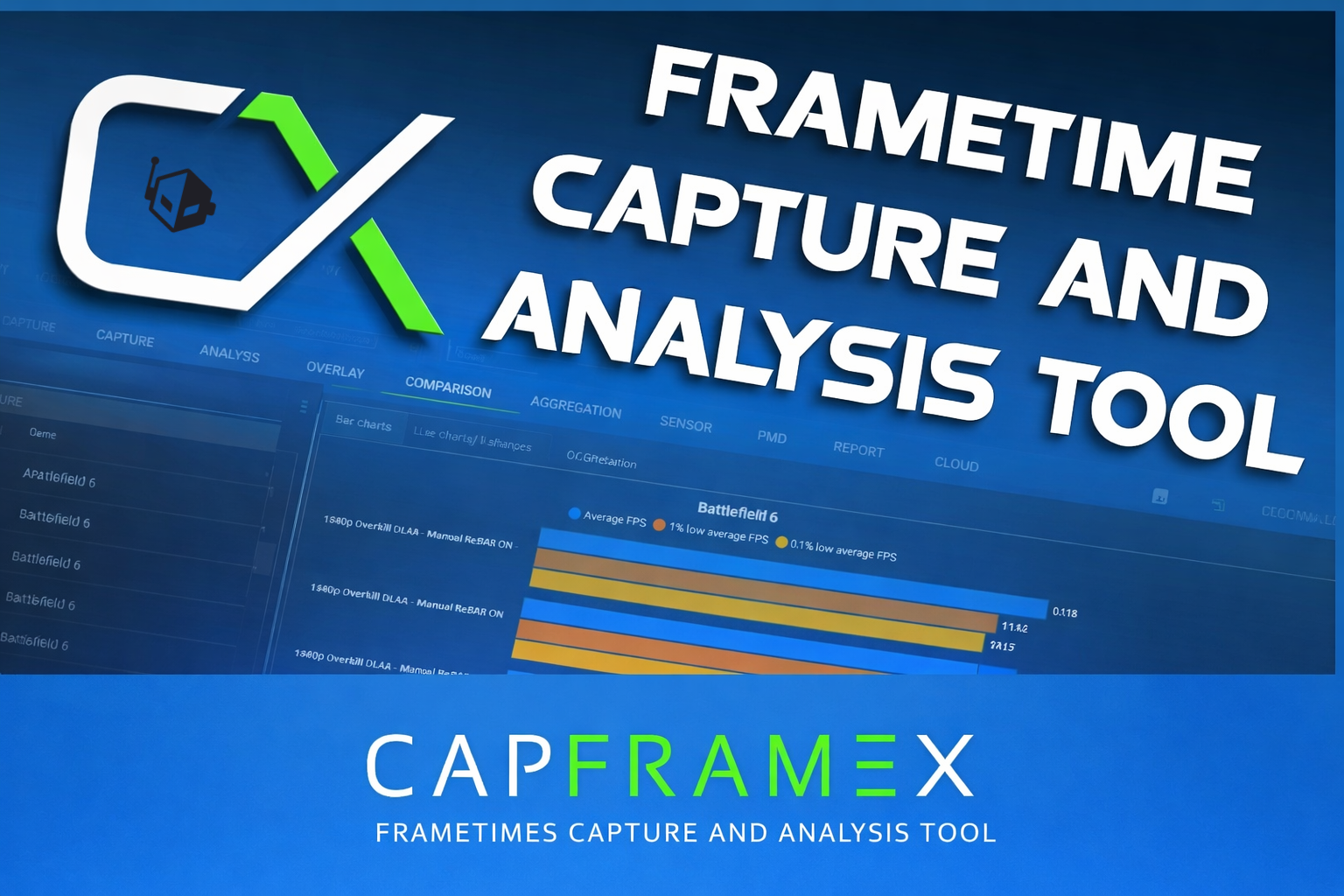
CapFrameX has become a go-to tool for PC gamers and hardware testers because it focuses on that deeper performance truth. Rather than relying on simple FPS overlays, CapFrameX captures raw frametime data, then turns it into meaningful metrics you can use to compare hardware, tune settings, and understand why a game feels smooth one moment and rough the next. Below is a clear, practical guide to what CapFrameX measures and how to prepare your system so your results are reliable and repeatable.
What CapFrameX actually measures (and why it matters)
When you benchmark with CapFrameX, you’re not just collecting a single framerate figure. You’re recording per-frame performance, which makes it possible to see both overall speed and moment-to-moment stability.
At the heart of it is frametime, the time it takes to render each frame. Frametime is measured in milliseconds (ms). Lower frametimes mean the GPU is producing frames faster, which translates into higher FPS. The relationship is simple:
FPS = 1000 / frametime
(or the opposite: frametime = 1000 / FPS)
This is why frametime-based analysis is so powerful. A basic FPS counter can look fine while hiding spikes that cause stutter. CapFrameX captures the raw frametime behavior, then converts it into performance metrics that reveal how a game truly feels in motion.
The three performance metrics that matter most
CapFrameX can report many stats, but three are especially useful for understanding both speed and smoothness. They’re also commonly recommended for real-world gaming performance analysis:
Average FPS
This is the standard “overall” framerate for the entire capture. It’s good as a summary number, but by itself it can be misleading. A high average can still come with frequent dips that ruin the experience.
1% low average FPS
This represents the average FPS of the worst 1% of frames in your capture. In other words, it shows how your system performs during demanding moments that happen regularly. If your 1% low is close to your average FPS, the game tends to feel consistently smooth.
0.1% low average FPS
This reflects the worst 0.1% of frames, the extreme dips that are rare but noticeable. These are the moments most likely to cause obvious stutters or “micro-freezes,” even if everything else looks good on paper. This metric is especially useful for spotting issues like shader compilation stutter, background activity, unstable frame pacing, or storage/CPU bottlenecks.
Together, these three numbers paint a far more accurate picture than average FPS alone. Average tells you how fast the game runs overall, while 1% lows and 0.1% lows show how stable and hitch-free it is when things get intense.
Preparing your system for accurate CapFrameX benchmarking
Good benchmarks don’t happen by accident. If you want results you can trust (and results you can repeat later), you need to control variables that commonly distort performance: background apps, overlays, thermal throttling, unstable drivers, and inconsistent power behavior.
Update your BIOS, OS, and drivers first
Before any serious benchmarking session, make sure your platform is current:
– Update your motherboard UEFI BIOS if you’re behind, especially on newer CPU platforms where firmware updates can affect performance and stability.
– Keep your operating system up to date to reduce anomalies and improve consistency.
– Update GPU drivers. If you suspect driver issues or you’ve upgraded GPUs recently, doing a clean uninstall using a driver cleanup utility and then reinstalling fresh can help prevent strange frametime behavior and inconsistent results.
Clear out the benchmarking environment
Background activity is one of the fastest ways to ruin benchmark accuracy. For cleaner, more repeatable results:
– Close unnecessary apps: browsers, cloud sync tools (like OneDrive or Dropbox), chat/voice tools, and anything else that can steal CPU time, disk access, or memory.
– Disable overlays and capture features from common platforms (game overlays, system overlays, and built-in recording tools). Overlays can introduce overhead and sometimes interfere with frame capture consistency.
– Pause scheduled antivirus scans or maintenance tasks during testing (as long as you trust the software you’re running), since real-time scanning can impact loading and cause frametime spikes.
– Turn off V-Sync in driver settings (or set it to follow the game setting), then disable it in-game to prevent framerate caps and sync behavior from masking performance drops.
– Disable latency-reduction features like NVIDIA Reflex, AMD Anti-Lag, or Intel Xe Low Latency for benchmarking. These can influence frame pacing or act like soft limiters, making results less comparable between systems and settings.
Set power and performance options for stability
Power saving features can quietly hold performance back or create swings from run to run.
– In Windows power settings, use High Performance or Balanced to reduce aggressive power throttling behavior.
– On laptops, plug in the charger and disable battery-saving features during the test session.
– Optionally set your GPU control panel to a maximum performance mode to reduce clock fluctuation and improve run-to-run consistency.
Watch temperatures and system stability
Thermal throttling can make your benchmark results look worse than your system is actually capable of, or cause inconsistent results between runs.
– Use a hardware monitor to keep an eye on CPU and GPU temperatures and clock behavior during load.
– If you’re running heavy overclocks, undervolts, or aggressive RAM tuning and you see instability or unusual stutters, return to stock as a baseline. A stable baseline result is more valuable than a higher score that can’t be reproduced.
Maximize consistency to make results meaningful
Consistency is what makes benchmarks useful for comparison.
– Use the exact same in-game graphics settings every run.
– Avoid downloads, updates, and background syncing during testing. For maximum control, temporarily disabling internet access during benchmark runs can prevent surprise background tasks.
– Run multiple passes and average them to reduce random variance. Single-run benchmarks can be skewed by one unusual moment, especially in open-world games or titles with shader compilation.
Take these steps and your CapFrameX captures will reflect real performance differences rather than random system noise. That’s the foundation for trustworthy Average FPS, 1% lows, and 0.1% lows that actually match what you feel while playing.CapFrameX is one of the easiest ways to capture accurate frametimes and turn them into meaningful FPS metrics, but the quality of your results depends heavily on how well you set it up. If you want benchmark data you can actually trust, the goal is consistency: same scene, same duration, and fewer random interruptions from background tasks or fluctuating system activity. Get your PC stable first, then CapFrameX becomes a powerful tool for repeatable performance testing.
Installing and setting up CapFrameX is pretty simple, but following a clean process helps ensure every capture is valid and easy to compare later.
Start by downloading CapFrameX from its official GitHub Releases page. You’ll typically see an installer option and a portable option in the Assets list, and either one works fine. As of this guide’s context, the latest beta build mentioned is version 1.7.7. Before you run it, make sure your system has the required .NET Framework version installed (.NET 9 or higher is required on Windows 10/11). Without that, CapFrameX won’t run correctly.
Next, consider installing RivaTuner Statistics Server (RTSS). This part is optional, but it’s strongly recommended if you want an in-game overlay with live metrics while you benchmark. CapFrameX relies on the Intel PresentMon backend for capturing frametimes, and RTSS is what makes it easy to display FPS and related performance stats on-screen while you test.
Once CapFrameX is installed, launch it for the first time and let it initialize. On the first run, it may create the folders it needs for configuration and benchmark capture storage. A good habit here is to open it once, let it finish setting up, then close and relaunch if needed—this ensures the folder structure is ready before you start collecting data.
After that, confirm where your captures are being saved. Inside the interface, there’s a directory option on the left side (shown as an “Observed directory” style button in the UI). CapFrameX saves benchmark captures as JSON files, and you can either stick with the default location or point it to a dedicated folder if you want to keep results organized across different games, GPUs, drivers, or test sessions.
Now comes the most important part for reliable benchmarking: capture behavior. CapFrameX lets you control how captures start, how long they run, and how the tool notifies you when logging is active. These settings directly affect how consistent and repeatable your benchmark runs are.
Key capture options to configure include:
Capture hotkey: Set a hotkey combination (up to three keys, including modifiers like CTRL, SHIFT, or ALT) to start and stop recording. This gives you precise control over exactly when the benchmark begins and ends.
Capture time (seconds): If you set this to 0, the capture runs indefinitely until you stop it manually. If you prefer fixed-length runs for consistency, set a specific number of seconds.
Capture delay (seconds): Useful when you want time to settle into a scene after pressing the hotkey. A delay of 0 starts immediately; a higher value waits before logging begins.
Hotkey sound: You can enable a sound cue (voice or tone) or disable it entirely. Audio feedback is surprisingly helpful when you’re trying to keep run timing consistent without staring at an overlay.
If you plan to do serious benchmarking, CapFrameX also includes a feature designed specifically to reduce run-to-run randomness: Run history and aggregation. This is a big deal because single runs can be skewed by one-off stutters, background activity, or a momentary CPU spike. Aggregation improves data quality by combining multiple runs into one more statistically meaningful result.
Here’s what that system does in practice:
Run history stores several consecutive captures so you can compare them or combine them.
Number of runs controls how many runs are collected before aggregation happens (if you choose to aggregate).
Reset run history clears what’s currently stored so you can start fresh.
Second metric and Third metric let you pick extra stats shown alongside the primary metric. Many users choose Average FPS as the primary metric, paired with 1% low and 0.1% low for a better view of smoothness and stutter behavior.
Aggregation merges the frametime data from all stored runs into one combined record. This helps create a more reliable summary, especially useful when you’re comparing settings, patches, drivers, or hardware upgrades.
Outlier handling controls what happens if one run is clearly “off” compared to the others. CapFrameX can detect outliers using the median value of a chosen metric and a percentage threshold.
Outlier metric selects which metric is used to judge outliers (Average FPS, 1% low, or 0.1% low).
Outlier percentage sets how far a run can deviate from the median before being flagged (often a small value like 3%).
Save aggregated result only keeps your capture folder tidy by saving just the final combined result instead of every individual run.
If all of that sounds like too much tuning, you can leave defaults in place and still get good results. The main takeaway is that multiple runs are usually better than a single run when you want dependable benchmark comparisons.
When you’re ready to confirm everything works, do a quick real-world test. Open CapFrameX (and RTSS if you installed it), launch a game, then use your capture hotkey to start logging during a consistent segment of gameplay. Stop the capture, then go back into CapFrameX and check the Captures section in the Capture tab. You should see your new capture appear there. If it doesn’t show up, revisit the hotkey settings first, and if your overlay isn’t appearing, double-check RTSS installation and overlay configuration.
A few practical maintenance tips can save time later. If you ever want to completely reset CapFrameX settings or fix a broken overlay/profile configuration, you can remove its configuration folder located under %APPDATA%CapFrameXConfiguration. Also, keep CapFrameX updated, since newer releases regularly include bug fixes and feature improvements.
Finally, if you see a “Multiple processes detected” message in the RTSS-powered overlay, that usually means more than one GPU-using process is active and being detected. In that case, close the extra process if you don’t need it, or add it to CapFrameX’s Process ignore list so your captures stay focused on the game you’re benchmarking.
With CapFrameX installed, a reliable hotkey and capture setup, and (ideally) multi-run aggregation enabled, you’ll be in a strong position to capture clean frametime data and produce benchmark results that are consistent, comparable, and genuinely useful.The list in CapFrameX’s Capture tab is refreshingly simple, which is exactly what you want when you’re trying to run clean, repeatable benchmarks. Once CapFrameX is installed and set up, you can start measuring real in-game performance in a way that goes far beyond a single FPS number.
Instead of relying on quick averages that can hide stutters, CapFrameX records frametimes (the time it takes to render each frame). From that data, it calculates the metrics gamers and PC builders actually care about, such as Average FPS, 1% low average FPS, and 0.1% low average FPS. The key is capturing correctly: start and stop your run at the right moments, test the same scene every time, and repeat the run multiple times so the results are trustworthy.
Launching CapFrameX and your game
Start by opening CapFrameX and letting it run in the background. When minimized, it should sit in your Windows taskbar system tray. Next, launch your game and load into the exact section you want to benchmark.
Choose a scene that’s easy to repeat consistently. That might be a specific path through a town, a short combat encounter you can recreate, or a controlled camera pan in the same location. Repeatability matters because even small differences in movement, AI behavior, or camera direction can change results and make comparisons less reliable.
If you’re using an on-screen display setup, you’ll typically need RTSS working properly as well. Make sure the on-screen display option is enabled and that the application detection level is set to at least Low. Once your game is running, confirm the overlay status shows that the game is ready to capture before you begin your benchmark run.
Starting a capture in CapFrameX
When you’re ready to record, go to CapFrameX’s Capture tab and confirm your capture hotkey. The default is often F11, but it may be different depending on your configuration.
Right as your benchmark scene begins, press the capture hotkey. CapFrameX will start logging raw frametimes, and if you’ve enabled it, it can log sensor data too. If sound or voice cues are enabled, you’ll hear a “capture started” message or tone. By default, the overlay will disappear during the capture (this behavior can be changed in the overlay settings if you prefer).
A helpful setting here is Capture Time [s]. If you set it to 0, the capture will run indefinitely until you press the hotkey again. This is great for fully manual control, especially when you want to end a run at an exact moment rather than after a fixed duration.
While the capture is running, play through your chosen segment exactly the same way you plan to do it every time. Same route, same actions, same camera behavior, and the same graphics settings.
Stopping a capture and saving your run
How a capture ends depends on your capture time setting. If you set a fixed duration (anything above 0 seconds), CapFrameX will stop automatically once the timer runs out. If you set it to 0, you’ll stop it manually by pressing the capture hotkey again.
For practical, repeatable benchmarking, a fixed duration is often easier. A length of at least 20 seconds is commonly recommended so the data is long enough to be meaningful, and then you can run multiple passes and compare them.
Once the capture is processed, you’ll hear a “capture finished” cue if that option is enabled. The completed run will then appear in the Captures list inside CapFrameX, with its own entry for that attempt. You can review the record info for each run and customize details, just remember to save any changes you make.
Running multiple benchmark passes for accurate results
One run can be misleading due to natural variation: background processes, slight differences in in-game behavior, or tiny inconsistencies in your movement. For more reliable results, capture at least three runs of the same exact benchmark segment.
Each time you repeat the test, keep everything consistent:
Start at the same point
Use the same scene and camera angle
Follow the same movement route or action sequence
Use the exact same graphics settings and system conditions
Once you have multiple captures, CapFrameX’s run history and aggregation tools become far more valuable, helping you get cleaner, more dependable performance conclusions.
How to analyze your benchmarks in CapFrameX
Capturing the data is only half the job. The real benefit comes from understanding what those frametimes and percentile lows say about smoothness, stutters, and system limits. CapFrameX makes this easier by offering two core ways to interpret results: the Analysis tab for deep-diving into a single run and the Comparison tab for evaluating multiple captures against each other.
Using the Analysis tab (single-run deep dive)
The Analysis tab is built for understanding one benchmark run in detail. It combines graphs and summary statistics so you can see not just how fast the game ran, but how stable that performance was.
Frametime graphs show frame rendering time in milliseconds. Smooth gameplay usually looks like a relatively flat line. Sudden spikes often signal micro-stutter, loading hitches, or a momentary CPU/GPU bottleneck. You can view raw frametimes or use filtering options to highlight overall trends.
FPS graphs are derived from the frametimes. CapFrameX converts every frametime into an FPS value and plots it over the duration of the benchmark. This helps you see where the game dips, where it stabilizes, and how performance changes over time.
Percentile and metric summaries include average FPS along with low-percentile values like 1% lows and 0.1% lows. These are especially important because they reflect consistency and playability, not just peak performance.
Threshold and distribution visuals help you quickly understand how often performance drops into undesirable ranges. This makes it easier to spot whether a “high average FPS” result still includes frequent hitching or dips.
Sensor data (if enabled) can place your performance results into context. You may see CPU and GPU temperatures, clock speeds, power draw, and utilization. This is extremely useful for troubleshooting. For example, if GPU usage is low while CPU load is maxed, it’s often a sign of a CPU or memory bottleneck rather than a graphics limitation.
CapFrameX also offers multiple ways to visualize frametime behavior, including distribution-style views that help you understand overall consistency patterns rather than only looking at a timeline graph.
Using the Comparison tab (side-by-side results)
While the Analysis tab is all about a single run, the Comparison tab is designed for evaluating changes. This is where CapFrameX shines when you’re testing different settings or configurations, such as:
Different graphics presets
New GPU drivers versus old ones
Hardware upgrades
Changes to resolution, upscaling, or frame generation options
To use it, you simply drag and drop captures from the Captures list into the Comparisons list. Once added, CapFrameX will visualize the differences so you can quickly see which run is actually smoother and which one only looks good on averages.
If you want, share the game you’re benchmarking and what you’re trying to compare (settings, GPUs, drivers, etc.), and I can help you set up a repeatable benchmark plan that produces clean, search-worthy results.CapFrameX’s comparison tools are where raw benchmark captures turn into something you can actually read, explain, and act on. In the main comparison area, results appear in a familiar bar chart view by default, but the real advantage is how many ways you can reshape the data to match the story you’re trying to tell. You can switch between different chart and graph types, including bar charts for key metrics and frametime/FPS overlays that highlight how performance behaves moment to moment. You can also choose exactly which stats are displayed, such as average FPS, 1% low average FPS, and 0.1% low average FPS, then give the chart a custom title so it’s instantly clear what’s being compared.
Once you start sorting and grouping captures, this section becomes even more useful. Want to compare multiple GPUs across the same game? Or see how different graphics presets affect frame consistency? You can group by game title, arrange results by a specific metric, and keep collections organized so patterns are easy to spot. With a bit of experimentation, the comparison tab becomes a fast way to draw clean conclusions from benchmarking data instead of getting lost in numbers.
One especially helpful way to interpret performance is by looking at raw frametime behavior rather than only FPS. A technique many enthusiasts like is the “L-shape” view of frametime data, because it makes frametime lurches, spikes, and departures from the average stand out at a glance. Those deviations are often what you feel as stutter or hitching, even when the average FPS looks fine.
For users who want even deeper accuracy, CapFrameX can also integrate with Benchlab, a hardware-based telemetry and monitoring platform widely used by reviewers, overclockers, and PC enthusiasts. Unlike software-only monitoring, Benchlab is a physical device that connects directly to power and sensor points in a system. That allows it to capture high-precision data such as power draw, voltage behavior, temperatures, fan speeds, and ambient conditions. Because it’s not relying on motherboard-reported estimates, it’s often more consistent and repeatable for serious testing. This matters when you’re trying to measure real CPU or GPU power consumption under load, verify voltage stability, or evaluate cooling performance during long benchmark sessions.
CapFrameX can communicate with Benchlab through the PMD section (short for Power Measurement Device), enabling accurate logging and graphing of hardware-based telemetry right alongside your performance captures. If you care about power efficiency—how many frames you’re getting per watt—this type of measurement can be a major upgrade over software-only readings.
Of course, even the best tool can produce misleading results if the benchmarking process is sloppy. One of the most common issues is capturing performance from inconsistent or non-repeatable scenes. Many games vary dramatically depending on what’s happening—exploration, combat, big open areas, dense cities, menus, or cutscenes can all stress hardware differently. The fix is simple but essential: pick a repeatable test scene and stick to it every time.
Another frequent mistake is focusing only on average FPS and ignoring frametime variance. A high average frame rate won’t feel smooth if frame delivery is inconsistent. That’s why 1% lows and 0.1% lows matter so much: they reflect the dips and pacing issues that actually shape perceived smoothness. A slightly lower average with strong lows often feels better than a higher average with unstable frametimes.
System prep is another overlooked factor. Background apps, overlays, and unnecessary services can introduce noise into results, even on powerful PCs. For more consistent captures, keep the system as clean as possible during testing. Some Windows features like Game Mode and Hardware-Accelerated GPU Scheduling may help stabilize results depending on the setup, but it’s best to test and verify rather than assume.
It’s also risky to trust a single benchmark run. Random spikes, background tasks, or minor inconsistencies can heavily skew one capture. Doing multiple passes and using run history and aggregation features gives a more representative outcome—especially when you’re trying to compare hardware, settings changes, or driver updates.
Speaking of comparisons, it’s surprisingly easy to accidentally benchmark under different conditions. Driver versions, operating system builds, and in-game settings must match if you want a fair comparison. The only time you should deliberately change one of these factors is when you’re specifically testing how that change affects performance.
Bottlenecks are another reason results can look confusing. Poor numbers aren’t always the GPU’s fault. CPU limits, memory constraints, or even storage streaming behavior can manifest as unstable frametimes. Knowing what you’re actually testing is key. If your goal is GPU benchmarking, push settings and especially resolution high enough to stay GPU-bound. If you’re testing CPU and RAM performance, lowering resolution while keeping settings high can help shift the workload where you want it.
One more step that’s easy to skip is warming up the game before capturing. Launching straight into a benchmark can catch shader compilation stutters, asset streaming spikes, and other “first run” behaviors. Hardware temperatures can also affect boost behavior, which can slightly distort results compared to longer gameplay. Doing warm-up passes helps ensure your captures represent sustained performance, not a best-case or worst-case moment.
Finally, if you benchmark with Frame Generation enabled, you’ll want to pay attention to CapFrameX’s capture method. The default approach measures time between present calls, which works well in most modern games. But with Frame Generation technologies enabled, using the “MsBetweenDisplayChange” option is important for correctly reflecting what’s actually being displayed.
The big takeaway is that benchmarking isn’t just about chasing the highest FPS number. It’s about understanding how consistently your PC delivers frames during real gameplay. Average FPS gives you a rough sense of speed, but it won’t fully reveal pacing issues, stutters, and the kind of dips that break immersion. By combining per-frame capture, frametime charts, and low-percentile metrics like 1% lows and 0.1% lows, CapFrameX helps you evaluate how a game truly feels—not just how it looks on a headline graph.
With a consistent test scene, multiple runs, a properly prepared system, and careful interpretation of frametime behavior alongside average FPS, you can produce results that are repeatable, accurate, and genuinely useful. That leads to smarter upgrade decisions, better settings tuning, and clearer performance comparisons that make sense to both enthusiasts and everyday players.


