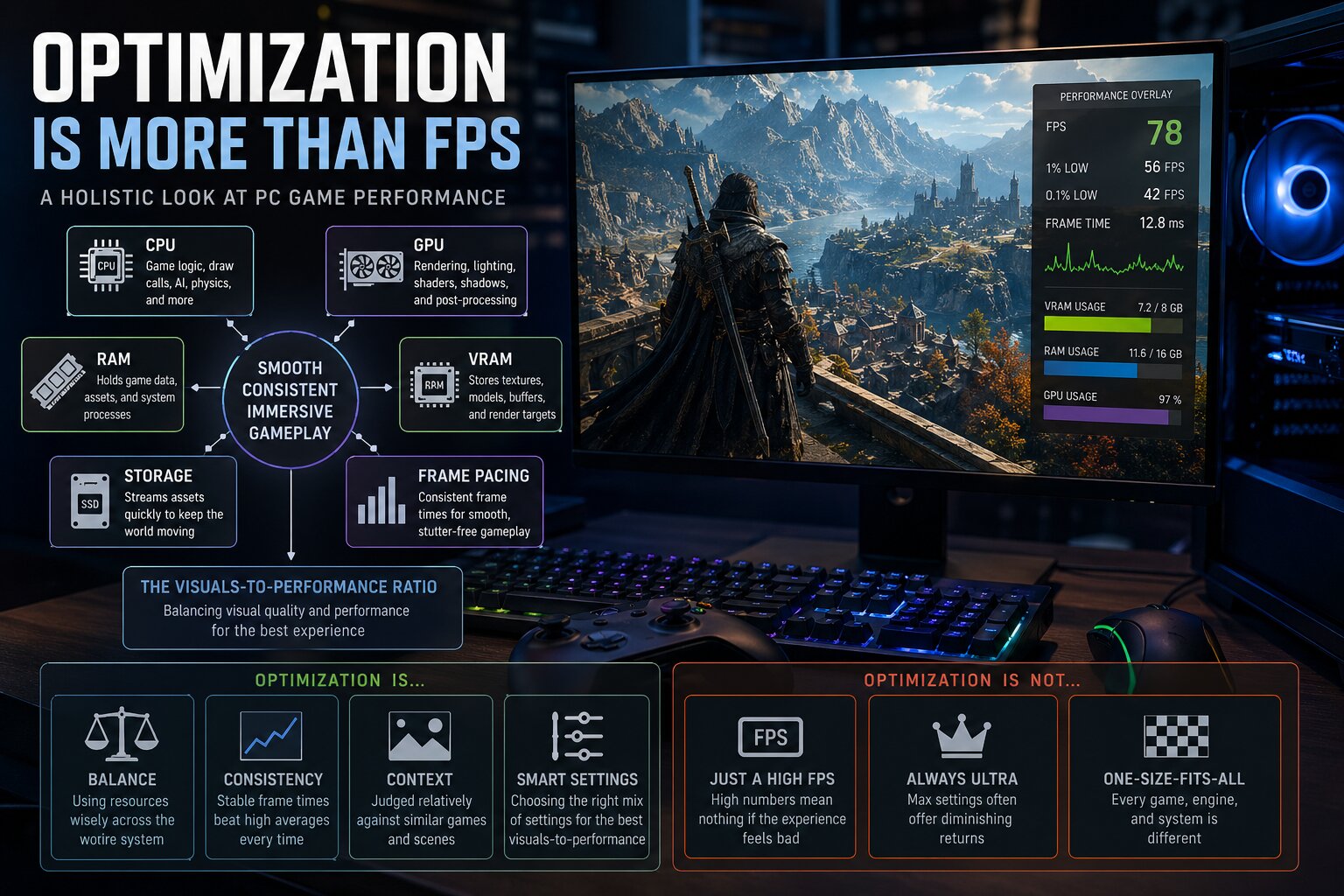
In PC gaming, “badly optimized” has become the go-to verdict whenever a new release doesn’t hit someone’s preferred FPS number at Ultra settings. Players boot up a brand-new title, push every slider to maximum, stare at the framerate counter, and decide within minutes whether it’s “optimized” or “broken.” If performance is high, the game must be well made. If it dips, stutters, or fails to meet expectations, it gets labeled unoptimized.
That quick judgment is understandable, but it’s also overly simplistic. PC game optimization isn’t a single switch that developers flip to make your GPU work harder or faster. It’s a full-system balancing act involving CPU workloads (rendering and simulation), shader and pipeline compilation behavior, system RAM and GPU VRAM usage, asset streaming and decompression, storage speed, and even GPU driver quirks. On top of that, performance isn’t only about how many frames you get, but how consistently those frames arrive.
A game can be struggling for completely different reasons depending on what’s happening on screen. One scene might be GPU-bound because it’s heavy on lighting, reflections, or dense effects. Another might be CPU-bound because it’s running complex AI routines, physics, or lots of NPCs. A third might be mostly fine on average, but still feel awful because the game stalls when compiling shaders or hitching as it streams new assets from storage. That’s why PC optimization is best understood as a puzzle with many moving parts, not a simple “GPU strong or weak” story.
The bigger truth is this: optimization is really about value. Specifically, it’s the visuals-to-performance ratio. The most useful question isn’t “What FPS do I get on Ultra?” but “How much visual quality, world complexity, and responsiveness am I getting for the hardware cost I’m paying?” A game that runs at 100 FPS but looks empty and flat isn’t automatically “better optimized” than a game that runs at 70 FPS with richer lighting, denser environments, and more advanced simulation. At the same time, good looks don’t excuse stutters, memory leaks, or poor frame pacing. Great optimization means developers are spending their limited CPU, GPU, and memory budget wisely every single frame.
One of the most common mistakes in performance discussions is treating the graphics card as the only factor that matters. Modern PC games are far more complicated than older titles, and many of the hardest problems happen outside the GPU. Big open worlds, advanced lighting techniques, procedural systems, and deep NPC simulation can slam different parts of your PC in different ways. If the CPU is overloaded in a busy area—think dense settlements filled with NPC behaviors and simulations—your GPU can end up waiting for instructions. In that scenario, lowering graphics settings might barely help, because the bottleneck isn’t on the graphics side.
Memory behavior is just as important. System RAM and GPU VRAM hold textures, geometry data, world assets, and other resources. When a game exceeds your GPU’s VRAM, the system may start shuffling data through slower pathways, which often shows up as stuttering, texture pop-in, sudden hitching, or a performance drop that seems to come out of nowhere. Storage performance now plays a major role too. Modern games stream huge volumes of data while you move through the world. If the SSD can’t deliver assets quickly enough—or if the game’s streaming and decompression pipeline isn’t efficient—you’ll feel it as traversal stutter and micro-freezes, even if your average FPS looks decent.
This is also why average FPS is not the performance metric many players think it is. Average framerate can hide the very problems that make a game feel bad. A title averaging 90 FPS with frequent stutters can feel far worse than a game averaging 70 FPS with stable delivery. What your hands and eyes actually notice is frametime consistency: how long each frame takes to render, and how steady that timing remains. If you’re aiming for 120 FPS, each frame should take about 8.3 milliseconds. When some frames suddenly take much longer, you perceive that as stutter. That’s why benchmark discussions often reference 1% lows and 0.1% lows: they highlight the dips and spikes that affect real smoothness.
It’s also worth separating true performance health from “band-aid” solutions. Frame generation technologies can improve perceived fluidity, but they don’t replace a stable base framerate and they don’t eliminate underlying stutter or hitching. If a game is choking on shader compilation, uneven asset streaming, or CPU spikes, generated frames may mask the symptoms in motion, but the root cause is still there.
A more fair and practical way to judge PC game optimization is by comparing what the game is doing versus what it costs to run. If a title is pushing dense foliage, complex dynamic lighting, high-quality shadows, and rich world interaction, it will naturally be heavier than a simpler corridor shooter. That doesn’t automatically mean it’s poorly optimized; it may simply be doing more work. The real red flag appears when two games look broadly similar, yet one runs dramatically worse, or when changes in graphics settings don’t scale performance in a logical way. Proper optimization also shows up in how well a game respects VRAM limits, whether it runs smoothly before upscaling is enabled, and whether the settings menu gives players meaningful control rather than a few vague presets.
This leads into one of the biggest traps in PC gaming performance debates: treating Ultra settings as the baseline. Ultra is often not meant to be the “recommended” experience on current hardware. In many games, Ultra functions as a showcase mode, sometimes designed for future GPUs, high-end systems, or players willing to trade efficiency for marginal visual gains. The real test of optimization is the game’s ability to look excellent at sensible, tuned settings—where you cut the biggest performance hogs that provide little visible improvement.
A classic example is how many players approached Red Dead Redemption II on PC. At launch, plenty of people maxed everything, watched performance collapse, and called it unoptimized. But those maxed-out settings were famously expensive, and some of the heaviest options could be reduced for massive FPS gains with little noticeable loss in image quality. In other words, the game wasn’t “bad” because Ultra was brutal—it was actually a strong example of how optimized settings can deliver a far better visuals-to-performance ratio than blindly pushing every slider to the limit.
Ultimately, good PC game optimization does not mean “no visual sacrifices.” It means smart scaling, stable frame delivery, sensible resource use, and the freedom for players to tune the experience to their hardware without the game falling apart. The next time a new release gets branded as “unoptimized” based only on an Ultra preset and an average FPS number, it’s worth stepping back and asking the deeper questions: is the game balanced across CPU, GPU, memory, and storage, does it deliver smooth frametimes, and does it provide the visual and gameplay payoff that matches what it demands from your system?“Perfectly optimized” gets thrown around a lot in PC gaming, but it’s usually a misunderstanding of what good optimization actually is. When a game runs smoothly and still looks great, it’s often because the developers made smart, targeted compromises. Maybe they used baked lighting instead of fully dynamic lighting, or trimmed draw distances and object density to stay within performance budgets. If those trade-offs are subtle and the end result feels cohesive, that is good optimization.
What’s not good optimization is when the cost and the visuals don’t match. A cutting-edge ray-traced or path-traced showcase is naturally going to be heavier than a game that leans on stylized art direction and simpler rendering. That’s expected. The red flag is when a game looks merely “fine” but performs like a technical powerhouse anyway—stutters, hitches, unstable frametimes—without delivering the kind of visual leap that would justify that workload. In other words, the visuals-to-performance ratio matters as much as raw FPS.
Why VRAM (and RAM) Pressure Causes Stutter So Often
A major reason modern PC games hitch is memory pressure, especially VRAM. VRAM is where the GPU stores the data it needs right now: textures, models, geometry buffers, streaming assets, and in some cases ray tracing data structures. As resolutions rise and texture detail increases, VRAM usage climbs fast. When a game stays within available VRAM, performance tends to be stable. When it spills over, the GPU has to fetch more from system RAM, which is far slower in bandwidth and latency. That mismatch is a classic cause of sudden stutters—like when you turn a corner into a new area and the game needs to pull in a bunch of new assets.
Texture settings are particularly deceptive. They can feel “free” until the instant you cross the VRAM limit, and then performance can fall apart dramatically. It’s reasonable that modern games won’t remain comfortable on 8 GB forever, but well-optimized PC releases should scale sensibly across a range of GPUs and give players clear, accurate information about VRAM impact so settings can be chosen intelligently.
There are also promising approaches on the horizon. Machine learning-based texture compression, such as Neural Texture Compression (NTC), is often discussed as a way to reduce VRAM load while keeping image quality high. If solutions like that mature, they could meaningfully ease one of PC gaming’s most common performance pain points.
Shader Compilation Stutter: The Problem That Keeps Returning
Another major source of “this game feels bad even at decent FPS” is shader compilation stutter, which has become especially common in the DirectX 12 and Vulkan era. Shaders are small programs that tell the GPU how to draw pixels, lighting, materials, shadows, and effects. Because PC hardware and driver environments vary massively, shaders (and related pipeline configurations) often need to be compiled specifically for your system.
When that compilation happens during gameplay—right as you trigger a new effect, enter a new area, or see a material for the first time—you get a noticeable hitch. That’s why the “compiling shaders” screen at first launch, while inconvenient, is frequently better than constant intermittent stutters later. Strong PC optimization typically includes robust pre-compilation and caching strategies so the game isn’t building critical rendering pieces at the worst possible moment.
This issue can be especially frustrating in modern engines that rely on large numbers of complex shaders and pipeline states, making it harder to ensure smooth traversal across the huge variety of PC configurations.
Upscaling and Frame Generation Help, But They Don’t Magically Fix Optimization
Technologies like DLSS, FSR, and XeSS can provide major performance boosts by rendering at a lower resolution and reconstructing the image. Frame generation can further increase perceived smoothness by inserting interpolated frames. These tools are genuinely valuable, and in many games they can be the difference between “playable” and “great.”
But they also complicate the optimization conversation. Upscaling reduces image quality to some degree and can introduce artifacts depending on the implementation and settings. Frame generation can increase latency, and it generally works best when the underlying base frame rate is already stable and relatively high. If the “real” FPS is shaky or frametimes are inconsistent, generated frames may make motion look smoother while the game still feels unresponsive—and visual artifacts can become more obvious.
The most honest way to judge performance is in two layers: how well the game runs natively (frame pacing, stability, latency, stutter behavior), and then how effective and clean the upscaling and frame generation options are when you choose to use them. These features should be treated as performance tools—not as excuses for a poorly built PC version.
The Myth of the “Old Days” of Perfect PC Optimization
There’s a popular idea that older PC games launched in a better state than today’s releases. The reality is more complicated. Many classic PC games feel flawless now because we’re playing them on hardware that’s far beyond what they were originally designed for—plus years of patches, driver improvements, and operating system refinements.
At launch, plenty of beloved titles had well-known problems: hitching, stutters, and performance drops even on high-end systems of their time. Some titles pushed advanced lighting and shading so aggressively that they brought top GPUs to their knees. Others struggled with open-world streaming, where moving through the world required continuously loading new areas and assets into memory, causing traversal stutter.
Demanding games, rough launches, and hardware limits have always been part of PC gaming. We just tend to remember the polished, patched versions—and we experience them today with massive performance headroom.
Why Optimization Can Feel Subjective (Even When the Data Is Real)
PC performance also becomes personal faster than many people admit. One player only cares about a high FPS number. Another can tolerate lower FPS but can’t stand frametime spikes. Display technology matters too: variable refresh rate monitors can hide fluctuations that would be immediately obvious on fixed refresh screens. Even input method changes perception—mouse and keyboard players often notice latency more sharply than players using controllers.
On top of that, people perceive motion differently. Two players can run the same game on similar hardware and genuinely disagree on whether it feels “smooth.” That’s why good performance analysis should respect both objective metrics and real-world feel.
How to Judge PC Game Optimization More Fairly
Not every frame dip is proof of developer incompetence, and “Ultra settings at all times” isn’t a realistic expectation in an era of enormous worlds, complex simulation, high-detail assets, and advanced lighting. The better question is whether a game treats your hardware responsibly and whether the visual result justifies the load.
A more useful framework for evaluating PC game optimization looks like this:
Compare scope fairly: Don’t judge a massive open-world game by the standards of a linear corridor shooter.
Test comparable scenes: Benchmark demanding, repeatable gameplay areas rather than quiet, easy sections.
Look beyond averages: Include 1% and 0.1% lows to capture stutter and hitching that average FPS hides.
Use optimized settings, not just Ultra: Real optimization discussions should include settings that deliver the best balance per hardware tier, not only maxed-out presets.
Account for CPU and storage: The GPU isn’t the only factor. Streaming, traversal, simulation, and asset decompression can heavily impact smoothness.
Watch VRAM and RAM health: Memory usage should be evaluated in context, especially when stutter patterns suggest paging or streaming issues.
Separate native performance from upscaling: Analyze true native rendering first, then judge upscaling and frame generation as optional tools.
Always weigh visuals-to-performance ratio: Ask whether the game runs as well as it should for what it’s actually displaying.
Final Takeaway
Optimization isn’t a single number on an FPS counter. It’s a balancing act between visual goals, hardware cost, frametime consistency, latency, and overall polish. A game can show high FPS and still feel awful due to stutter. Another game can be heavy on hardware and still be well-optimized if its performance demands make sense for the visual ambition and if it scales cleanly across settings.
Modern PC games are more complex than ever, which makes optimization harder—and also more important. The “golden age” of flawless PC launches is mostly nostalgia. What truly separates the best PC versions today is graceful scaling, consistent frame pacing, transparent settings, and a strong visuals-to-performance ratio that makes the experience feel worth the hardware effort.