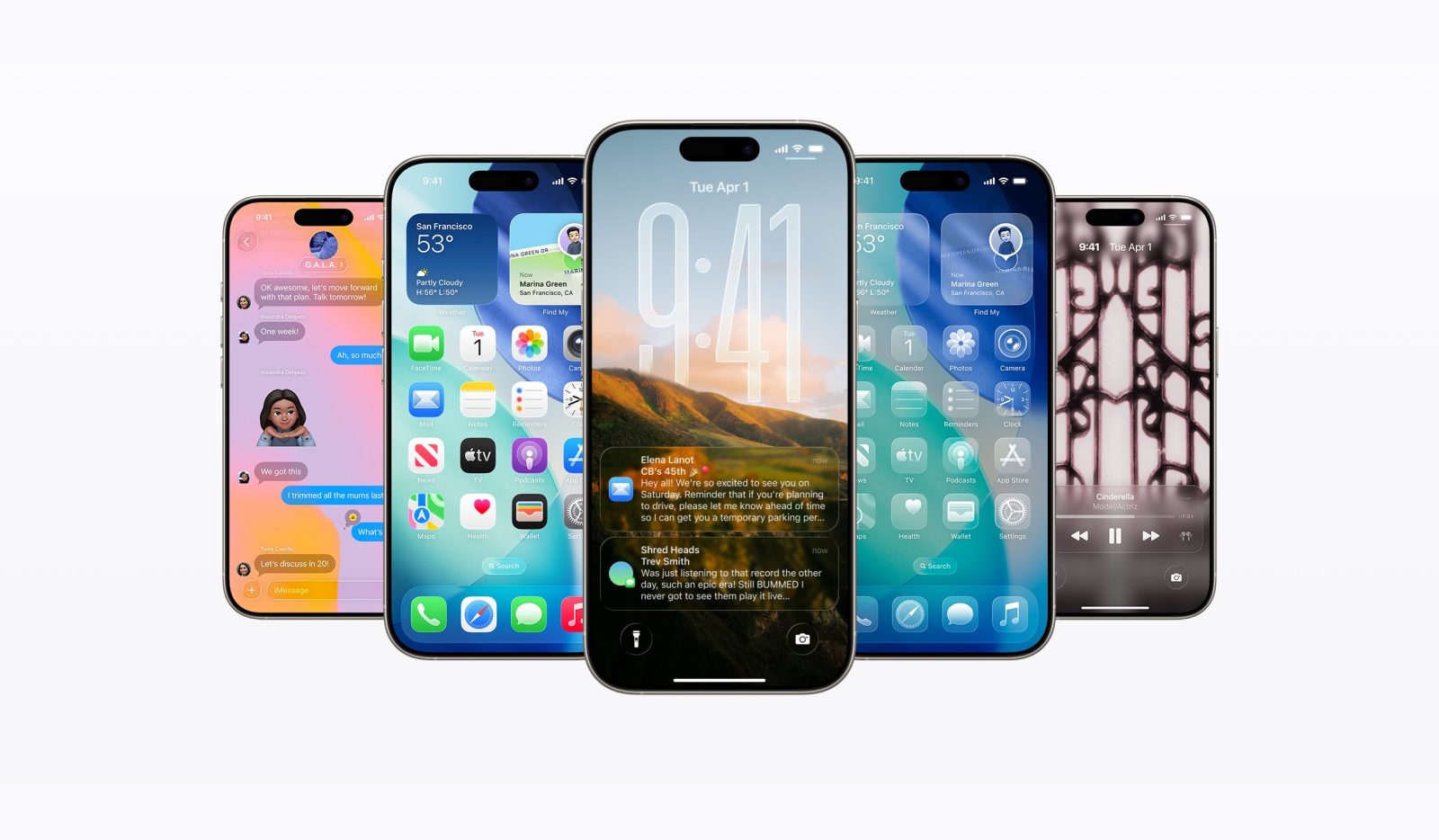
Not loving the rough edges in iOS 26? You’re not alone. The new Liquid Glass interface looks slick, but early releases can feel stuttery, drain battery faster, or introduce bugs that get in the way of your day. The silver lining: Apple is still signing iOS 18.6.2 at the moment, so you can roll back to a stable, familiar build—if you act before the signing window closes.
Important reminder before you start: downgrading erases your iPhone completely. Back up everything you care about first, and understand that backups created on iOS 26 usually can’t be restored to iOS 18.6.2. For the smoothest experience and fewer glitches, plan to set up as new or restore from a backup made on iOS 18.
What you need to do before downgrading
– Back up your data. Use iCloud, Finder on Mac, or iTunes on Windows. Consider making multiple backups. Export must‑keep items like photos, videos, notes, and voice memos separately.
– Turn off Find My iPhone and sign out of your Apple ID to avoid Activation Lock during restore. Go to Settings > Your Name > Find My > Find My iPhone, switch it off, then sign out of your Apple ID from Settings.
– Confirm iOS 18.6.2 is still being signed for your iPhone model. Unsigned firmware will not install.
Step-by-step: downgrade iOS 26 to iOS 18.6.2
1) Back up your iPhone
– Use iCloud or connect your iPhone to a computer and back up with Finder (Mac) or iTunes (Windows). Archive the backup if possible to prevent it from being overwritten.
2) Disable Find My iPhone and sign out of Apple ID
– Settings > Your Name > Find My > Find My iPhone > Off.
– Then return to Settings > Your Name and sign out. You’ll need your Apple ID password.
3) Download the correct iOS 18.6.2 IPSW file
– Get the firmware for your exact iPhone model from Apple’s update servers or a trusted IPSW repository. Double-check that iOS 18.6.2 is still signed for your device before proceeding.
4) Connect your iPhone to your computer
– Use a reliable USB-C or Lightning cable. Confirm your device appears in Finder (Mac) or iTunes (Windows).
5) Enter DFU mode
– For Face ID models: Quickly press and release Volume Up, then Volume Down. Press and hold the Side button until the screen goes black. Immediately hold both the Side button and Volume Down for about 5 seconds. Release the Side button but keep holding Volume Down until Finder/iTunes detects your iPhone in recovery/DFU mode (screen stays black).
– If DFU is tricky, you can try regular Recovery Mode, but DFU tends to be more reliable for downgrades.
6) Start the restore
– On Mac: Open Finder, hold the Option key, click Restore iPhone, and select the iOS 18.6.2 IPSW file.
– On Windows: Open iTunes, hold Shift, click Restore iPhone, and select the iOS 18.6.2 IPSW file.
7) Let the installation complete
– Your iPhone will restart several times. Keep it connected and don’t interrupt the process.
8) Set up your iPhone
– For maximum stability, choose Set Up as New iPhone.
– If you have a compatible backup made on iOS 18, you can restore it. Backups from iOS 26 typically won’t restore to iOS 18.6.2.
Helpful tips and troubleshooting
– Error about the firmware not being compatible or error 3194: Usually means iOS 18.6.2 is no longer signed for your device. In that case, downgrading isn’t possible.
– Stuck in a boot loop: Repeat the DFU steps and restore again with a freshly downloaded IPSW file.
– Activation Lock prompt: Make sure you disabled Find My iPhone and signed out before restoring.
– Battery or performance issues after downgrade: Consider erasing all content and settings and setting up as new to eliminate residue from newer system files.
Act quickly if you plan to downgrade. Apple can stop signing older firmware at any time, and once signing ends, you won’t be able to install iOS 18.6.2. After you’re back on iOS 18, remember to sign in to your Apple ID and re-enable Find My to keep your device secure.
If iOS 26 isn’t meshing with your workflow yet, this rollback can bring back the stability you need—at least until a more polished iOS 26 update arrives.