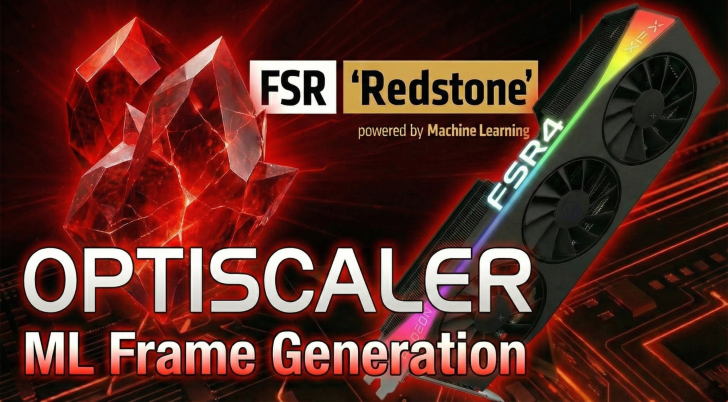
AMD’s latest FSR Redstone update is meant to push image quality and smoothness further with a new set of machine learning-powered features. It introduces additions like FSR Ray Regeneration and Neural Radiance Caching, but for many PC gamers the real headline is the upgraded Frame Generation model. This new ML-based approach is designed to improve the quality of generated frames compared to earlier versions.
There’s one big catch, though: just like FSR 4 upscaling, the Redstone version of Frame Generation only works in games that already have FSR 3.14 (or newer) built in. Right now, that leaves players with a fairly small list of supported titles—roughly around 30—so even if you own a compatible AMD GPU, you may not have many games where you can actually use the newest Frame Generation model today.
That limited rollout is exactly why the modding community has stepped in once again. Within a day of the Redstone technologies becoming publicly available, the Optiscaler developers announced early Redstone support thanks to an internal upgrade to the FFX 2.1 SDK. The practical impact is huge: if a game supports a modern upscaler pipeline (think anything in the range of FSR 2 or DLSS 2 and onward), it may be possible to inject and use AMD’s newer Frame Generation path through Optiscaler. For best results, games that provide DLSS Frame Generation inputs tend to offer cleaner data for Frame Generation to work with, which can improve the final experience.
Installing Optiscaler (quick overview)
To use Redstone-supporting Optiscaler builds, you’ll need a newer pre-release version rather than older stable releases that don’t include Redstone features yet. After you get the correct build, the basic installation flow is:
1) Extract the Optiscaler folder
2) Copy the extracted contents into the game’s directory (the same folder as the game’s .exe)
3) Run setup_windows.bat
4) When prompted, repeatedly enter 1 (this is for spoofing Nvidia inputs) until setup completes
After that, launch the game. From here, the best setup depends on what kind of Frame Generation support the game already has.
Option 1: The game supports DLSS Frame Generation, but only through Streamline SDK 1
If a game has DLSS Frame Generation but relies on the older Streamline 1 implementation, you typically can’t take advantage of the more advanced DLSS inputs for ML Frame Generation. In this scenario, Optiscaler can fall back to OptiFG, which uses the same general inputs available to the upscaler. A title like A Plague Tale: Requiem is an example of this kind of situation.
A typical setup looks like this:
– Launch the game and enable DLSS upscaling in the game settings
– Load into an actual gameplay segment (not just menus)
– Press Insert to open the Optiscaler menu
– Switch the upscaler from the default (often XeSS) to FSR4
– In Frame Generation settings, set the input/source to OptiFG and set output to FSR FG
– Use Save INI (usually near the bottom of the menu), then restart the game for changes to fully apply
– After restarting, switch the Frame Generation model from an older option like FSR 3.1.6 to FSR 4.0.0
In terms of results, this method can look good and feel playable, but it may not show dramatic differences between the older and newer Frame Generation models—likely because OptiFG relies on more limited input data than a fully integrated, proprietary Frame Generation pipeline. Frame pacing evaluation is also tricky without specialized testing methods, so it’s worth experimenting with different models yourself to see which looks and feels best in the games you play.
Option 2: The game supports DLSS Frame Generation via Streamline SDK 2+
If a game supports DLSS Frame Generation through Streamline SDK 2 or newer (but doesn’t include native FSR Frame Generation), this is usually the best-case scenario for getting high-quality output. Here, you can often use the game’s DLSS Frame Generation inputs and convert them into an FSR Frame Generation output, then swap to the newer FSR 4.0.0 model.
Using Star Wars Jedi: Survivor as a practical example, the general flow is:
– Extract Optiscaler into the game’s .exe directory
– Instead of relying on spoofing, use Optipatcher to enable DLSS inputs more cleanly (this can reduce overhead and tends to make setup smoother)
– Create a folder named plugins in the game directory
– Place the Optipatcher .asi file inside plugins
– Open Optiscaler.ini and set LoadAsiPlugins to true (it’s often false by default)
– Launch the game, load into gameplay, press Insert to open Optiscaler
– Change the upscaler from XeSS to FSR3.X/4 (menu navigation may require arrow keys in some games depending on mouse bindings)
– Set Frame Generation source/input to DLSSG via Streamline
– Set Frame Generation output to FSR FG
– Save INI, close, and restart the game
After restarting:
– In the game’s graphics settings, DLSS Frame Generation should appear available—enable it
– Open Optiscaler again and change the Frame Generation model to FSR 4.0.0
In testing, this approach can deliver the most convincing experience: smoother-feeling frame pacing, stable image quality, and better behavior around HUD elements (often because the DLSS Frame Generation inputs provide richer data to work with). Even if the visual differences between FSR 3.1.6 and FSR 4.0.0 aren’t instantly obvious to everyone, this method can still produce a polished result that feels closer to “native” Frame Generation support than the more basic OptiFG path.
The bigger takeaway
FSR Redstone’s upgraded ML Frame Generation may currently be limited by official game support, but tools like Optiscaler are opening the door for many more titles to benefit—especially games that already have strong upscaling support and, ideally, modern DLSS Frame Generation integration. For AMD GPU owners who want to try the latest Frame Generation model now rather than waiting months for broader official adoption, this community-driven route may be the most practical way to unlock Redstone-era features across a much wider library of PC games.