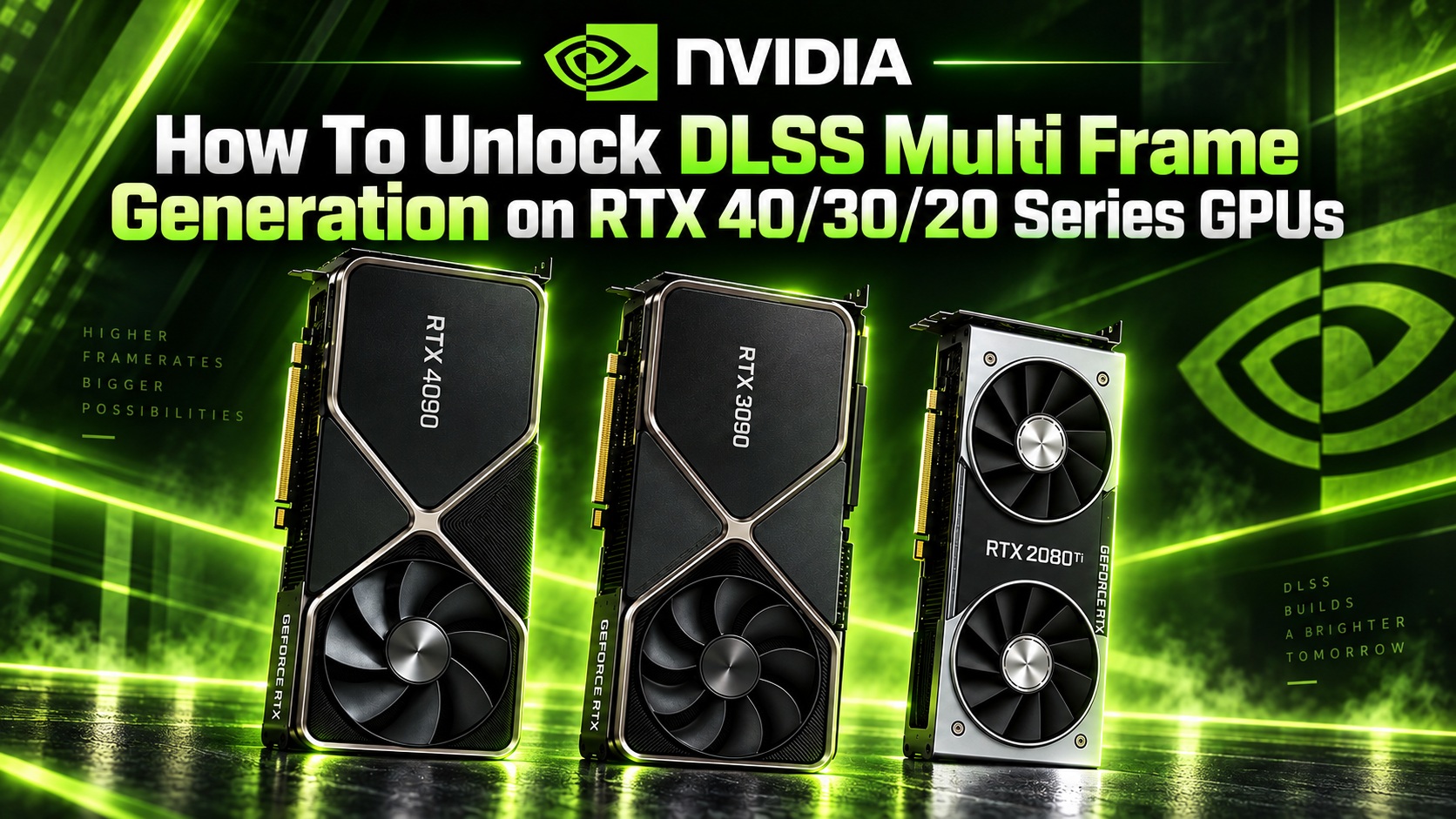
NVIDIA DLSS Multi Frame Generation Is Being Pushed Beyond RTX 50 GPUs by PC Modders
NVIDIA officially positions DLSS Multi Frame Generation as a feature for its GeForce RTX 50 Series “Blackwell” graphics cards, but the PC modding scene is already challenging that limitation. Over the past few weeks, community developers have been experimenting with ways to bring NVIDIA’s DLSS Frame Generation and Multi Frame Generation pipeline to older GeForce GPUs, including RTX 40 “Ada Lovelace,” RTX 30 “Ampere,” and even RTX 20 “Turing” cards.
What makes these new projects especially interesting is that they are not simply replacing NVIDIA’s technology with AMD FSR 3.1 Frame Generation, which is what many older frame generation mods did. Instead, these efforts are focused on adapting NVIDIA’s own DLSS-G pipeline so it can run on GPU architectures that NVIDIA does not officially support for Multi Frame Generation.
That distinction matters. These mods are attempting to work with the same general NVIDIA frame generation framework used by supported games, rather than swapping in an entirely different frame generation system.
How DLSS Frame Generation and Multi Frame Generation work
In traditional PC game rendering, the GPU renders every frame directly from the game engine. If your system is producing 60 frames per second, the game engine and GPU are creating 60 real rendered frames every second.
DLSS Frame Generation changes that by inserting AI-generated frames between the real rendered frames. This increases the number of frames displayed on your monitor, making motion look smoother when everything is working properly.
With DLSS 3 Frame Generation, officially supported on RTX 40 Series and newer graphics cards, NVIDIA generates one extra frame between two traditionally rendered frames. DLSS 4 Multi Frame Generation goes further by generating up to three AI frames for every real frame, creating what NVIDIA describes as 4X Frame Generation. The newer DLSS 4.5 implementation can push this even higher with Dynamic Multi Frame Generation, producing up to five generated frames per real rendered frame for a 6X frame multiplier.
However, DLSS Frame Generation is much more complex than simply blending two images together. The DLSS-G pipeline uses motion vectors, depth data, color information, user interface data, and other game-provided inputs through NVIDIA Streamline. Earlier DLSS 3 implementations also relied on the hardware Optical Flow Accelerator, while DLSS 4 moved more of the optical flow estimation into an AI model running on Tensor Cores.
RTX 50 “Blackwell” GPUs also introduce hardware Flip Metering, which helps maintain smooth frame pacing when several generated frames are inserted between real frames. This is one of the reasons unofficial DLSS Multi Frame Generation support on older GPUs is not as simple as copying a file. RTX 20, RTX 30, and RTX 40 cards do not magically gain Blackwell-specific hardware features through a mod. Instead, these community projects attempt to redirect, rebuild, or adapt parts of the DLSS-G process so older GPUs can execute them.
Why base frame rate still matters
Frame Generation and Multi Frame Generation can make a game look much smoother, but they do not increase the actual game simulation rate. The game itself is still running at the original rendered frame rate underneath the generated frames.
That means input response, physics updates, and gameplay responsiveness are still tied to the real frames produced by the engine. If a game feels sluggish at 25 or 30 FPS, enabling Multi Frame Generation may increase the displayed FPS number, but it will not fully fix latency or poor frame pacing.
For the best experience, a strong base frame rate is essential. A real frame rate of around 50 to 60 FPS should be considered the minimum starting point before using DLSS Frame Generation. Higher Multi Frame Generation modes need an even higher real frame rate to keep latency, image quality, and motion clarity at acceptable levels.
NVIDIA Reflex can help reduce latency in supported games, but it cannot completely remove the delay introduced by generating extra frames.
Important warnings before using DLSS Frame Generation mods
These experimental DLSS mods should not be used in competitive multiplayer games or titles protected by anti-cheat systems. Many of these projects work by loading proxy DLL files or intercepting functions inside the game process. That type of behavior can be flagged or blocked by anti-cheat software.
There has already been at least one reported case involving an RTX 3060 system where anti-cheat protection prevented a proxy DLL from loading. Even if a mod works in one game, that does not mean it is safe to use in every title.
You should also check your game’s performance before enabling Frame Generation or Multi Frame Generation. If the game is already struggling badly, generated frames may make the FPS counter look impressive while the actual experience remains uneven or delayed.
VRAM usage is another important factor. Enabling DLSS Frame Generation or Multi Frame Generation can increase video memory consumption. If your graphics card is already close to its VRAM limit, turning on these features may cause stuttering, texture issues, or instability.
Finally, always keep backups of original game files. These mods are evolving quickly, and NVIDIA can change DLSS-G, NGX, Streamline, or driver behavior at any time. A future update could improve compatibility, but it could also break current workarounds completely.
DLSSG-Transfusion for GeForce RTX 40 Series GPUs
For RTX 40 Series owners, one of the most notable community solutions is DLSSG-Transfusion. Among the current unofficial RTX 40 Multi Frame Generation unlockers, this project stands out for its balance of image quality, frame pacing, latency, and game compatibility.
DLSSG-Transfusion is part of a broader community effort to bring Multi Frame Generation to Ada Lovelace GPUs. It was created by modder Tony Joaca, with documented contributions from other community developers.
The current v1.4.0 build is more advanced than a simple unlocker. It supports fixed 2X through 6X Frame Generation modes, DirectX 12, Vulkan, Streamline 2.14 and newer, and multiple DLSS-G versions. It also includes a temporal midpoint reconstruction path designed to reduce judder when multiple generated frames are inserted between rendered frames.
Another major feature is its built-in Flip Metering bypass through OptiScaler integration. Since RTX 40 GPUs do not include the same Blackwell Flip Metering hardware found in RTX 50 cards, this type of workaround is important for improving frame pacing consistency.
Image quality is also a major focus. DLSSG-Transfusion includes a qualityValidWarp path that adjusts NVIDIA’s optical flow processing to better preserve thin objects and fine details. This can help with elements such as fences, wires, foliage, and narrow silhouettes, while also attempting to reduce disocclusion artifacts and HUD ghosting.
Games that provide separate HUDless and UI buffers can benefit further from native UI Recomposition. In simple terms, this allows the frame generation process to work on the clean 3D scene first, then place the user interface over the generated result afterward. This can reduce the warping or ghosting that sometimes appears around HUD elements during fast motion.
When available, the developer recommends using FG Preset B through the NVIDIA App. This preset can help avoid issues caused when transparent HUD elements and the moving 3D scene are already flattened into one image before frame generation. Preset A can still be used in games without UI Recomposition support, but some interface ghosting or distortion may remain during quick camera movement.
How to install DLSSG-Transfusion
Installing DLSSG-Transfusion is relatively simple, but there is one key rule: use only one proxy DLL from the supplied files, and do not rename it.
First, obtain the latest DLSSG-Transfusion v1.4.0 release from its community distribution source.
Next, extract the archive and choose the correct loader for your game. For most modern games, especially Unreal Engine 4 and Unreal Engine 5 titles, version.dll is generally recommended. Other available options may include dinput8.dll, winmm.dll, and dxgi.dll. An ASI version is also available for games that already use Ultimate ASI Loader or OptiScaler.
After choosing the correct DLL, copy it together with the DLSSG-Transfusion.json file into the folder that contains the game’s main executable. For Unreal Engine games, this is often located inside the Binaries Win64 folder.
Then launch the game and enable Frame Generation through the game’s graphics settings if the title supports it. Depending on the game and configuration, you may also need to adjust the mod’s JSON configuration file or NVIDIA App settings to select the desired Frame Generation mode.
The current state of unofficial DLSS Multi Frame Generation
The fact that modders are now experimenting with NVIDIA’s own DLSS Frame Generation pipeline on RTX 40, RTX 30, and RTX 20 GPUs is a major development for PC gaming enthusiasts. It shows how quickly the community can explore features that are officially restricted to newer hardware.
At the same time, expectations should remain realistic. These are experimental projects, not official NVIDIA features. Compatibility can vary from game to game, image quality is not guaranteed, and updates may break functionality without warning.
For RTX 40 owners in particular, DLSSG-Transfusion appears to be one of the most promising unofficial paths to Multi Frame Generation. When paired with a strong base frame rate, enough VRAM, and a compatible single-player game, it can deliver a smoother visual experience while preserving much of the quality expected from NVIDIA’s DLSS technology.
Still, users should treat these mods carefully. Avoid anti-cheat-protected games, back up original files, monitor VRAM usage, and remember that generated frames are not a replacement for real performance. They work best as an enhancement on top of an already smooth gaming experience.DLSS Multi Frame Generation Mods Tested: 3X and 4X Modes Bring Big Smoothness Gains, With Some Trade-Offs
DLSS Frame Generation has already become one of the most important performance features for modern PC gaming, especially in demanding ray-traced titles. But while official support is usually limited to standard 2X Frame Generation on many GPUs, new community-made tools are pushing things further by enabling 3X, 4X, and even higher Multi Frame Generation multipliers.
One of the most interesting tools currently being tested is DLSSG-Transfusion, a mod that allows supported games to run higher DLSS Multi Frame Generation modes beyond the standard 2X option. When it works properly, the result is a noticeably smoother image in motion, especially on high-refresh-rate displays. However, the higher the multiplier goes, the more important it becomes to watch for latency, artifacts, and frame pacing issues.
How DLSSG-Transfusion Works In-Game
After installing the mod, you should still enable DLSS Frame Generation normally from the game’s graphics menu. Once you are in-game, the mod’s own hotkeys are used to switch between multipliers.
Ctrl + Alt + 2 activates standard 2X Frame Generation.
Ctrl + Alt + 3 switches to modded 3X Multi Frame Generation.
Ctrl + Alt + 4 switches to modded 4X Multi Frame Generation.
The mod can also expose 5X and 6X modes, while Page Up and Page Down can be used to change the multiplier manually. Ctrl + Alt + D switches between fixed and dynamic Multi Frame Generation modes.
The best part is that these changes apply live while the game is running. You do not need to restart the game every time you switch between 2X, 3X, and 4X modes.
One important warning: do not try to control the modded Multi Frame Generation options from the game’s built-in graphics menu. That is not currently supported by this mod. Use the mod’s hotkeys instead.
Why 3X and 4X Are the Sweet Spot
Although 5X and 6X modes are available for experimentation, they are not always practical for regular gameplay. Higher multipliers can create more visible frame interpolation artifacts and may reduce responsiveness further.
For that reason, 3X and 4X are the most useful modes to test. They provide a clear smoothness boost over standard 2X Frame Generation while keeping image quality and latency within a more reasonable range.
OptiScaler Users Should Check This Setting
If you use OptiScaler, there is one extra setting to watch. OptiScaler has its own DLSS-G ratio override option, and if that setting is changed from its default value, it can override the multiplier selected by DLSSG-Transfusion.
To avoid conflicts, leave OptiScaler’s DLSS-G ratio override at its default setting when using DLSSG-Transfusion hotkeys.
The included JSON configuration file also gives advanced users manual control over several options, including the default multiplier, fixed or dynamic operation, Dynamic MFG target FPS, Flip Metering patch, Blackwell-to-Ada kernel transfusion, and performance logging.
Test System Used For DLSS Multi Frame Generation
To see whether the mod works in real gameplay and not just in theory, testing was carried out across three demanding modern games: Cyberpunk 2077, 007 First Light, and Resonance: A Plague Tale Legacy.
The test system used the following hardware and software:
CPU: Intel Core i7-14700K
GPU: NVIDIA GeForce RTX 4090 24 GB
Memory: 32 GB DDR5-7000 CL34
Storage: 2 TB PCIe 4.0 NVMe SSD
Operating system: Windows 11 25H2
Each game was tested using the same underlying graphics settings. The only major change was switching between official 2X DLSS Frame Generation and the modded 3X and 4X Multi Frame Generation modes.
Performance was checked using NVIDIA App’s performance overlay, including real-time FPS, 1% low FPS, and PC latency. This matters because headline FPS alone does not tell the whole story. A game can show a huge frame rate number while still feeling worse if latency, pacing, or artifacts become distracting.
Why Local Testing Matters More Than Video Comparisons
Video comparisons are not ideal for judging DLSS Frame Generation or Multi Frame Generation. Most online videos are still delivered at 60 FPS, which cannot properly show the much higher output frame rates produced by 2X, 3X, or 4X generation.
Compression can also hide small artifacts that become much easier to notice during real gameplay. For this reason, screenshots and videos are useful for confirming that the mod is active, but proper judgment has to be made locally on your own monitor.
To evaluate the mod correctly, you need to experience frame pacing, input latency, image quality, and game compatibility in real time.
Results In Cyberpunk 2077, 007 First Light, and Resonance: A Plague Tale Legacy
Across all three tested games, the modded 3X and 4X DLSS Multi Frame Generation modes worked as expected. The NVIDIA App overlay showed higher frame rates compared to standard 2X Frame Generation, while PC latency did not increase dramatically.
The 1% low FPS figures also remained healthy, which is important for perceived smoothness. In actual gameplay, the higher multipliers produced a visible improvement in motion clarity and fluidity compared to the standard 2X mode available on the RTX 4090.
That said, the improvement is not free. Visual artifacts become easier to notice as the multiplier increases. Some of these issues may be tied to the experimental nature of the mod, while others are simply a natural side effect of generating more intermediate frames.
Frame pacing was strong during testing, with no obvious stuttering or judder. The experience was especially stable when V-Sync was used together with G-Sync or VRR, which remains the recommended way to use frame generation technologies on compatible displays.
NVIDIA MFG Bridge For RTX 20 and RTX 30 GPUs
For GeForce RTX 20 Series and RTX 30 Series users, another promising project is NVIDIA MFG Bridge from modder gt2333588. This tool is especially interesting because it aims to bring native NVIDIA DLSS Frame Generation and Multi Frame Generation behavior to older RTX GPUs.
Instead of translating NVIDIA Frame Generation calls into AMD FSR 3.1 Frame Generation, its main feature is an experimental implementation of NVIDIA DLSS Frame Generation and Multi Frame Generation on Turing and Ampere cards. Supported multipliers range from 2X up to 6X.
The mod uses separate architecture-specific paths. Turing GPUs use an SM75 path, while Ampere GPUs use an SM86 path. Automatic GPU detection is enabled by default.
According to the developer, the native mode runs NVIDIA’s own DLSS-G implementation rebuilt for these older architectures, rather than simply imitating it through another frame generation method. The RTX 20 Series path is more experimental because Turing lacks some instructions available on newer GPU architectures, requiring additional emulation.
MFG Bridge Has Expanded Beyond Its Original Purpose
Although the main attraction is native DLSS Frame Generation and Multi Frame Generation on older RTX cards, MFG Bridge has grown into a broader experimental toolkit.
It can also offer FSR 3.1 Frame Generation up to 6X, experimental Intel XeSS Frame Generation, NVIDIA hardware Optical Flow acceleration, and even an experimental implementation of DLSS 5 Neural Rendering on RTX 30 Series GPUs by emulating Blackwell FP8 workloads through Ampere FP16 Tensor Cores.
Those features may be interesting for future testing, but the key focus here remains native NVIDIA DLSS FG and MFG on pre-Blackwell graphics cards.
Important Requirement Before Using MFG Bridge
MFG Bridge is not a universal frame generation injector. The game must already support NVIDIA DLSS Frame Generation.
The mod works by intercepting the game’s existing DLSS-G calls. If a game does not call NVIDIA’s DLSS Frame Generation API in the first place, the mod has nothing to hook into.
In simple terms, you need a game that already includes DLSS Frame Generation support before this tool can help.
How To Install NVIDIA MFG Bridge On RTX 20 and RTX 30 GPUs
Installation is now simpler than in earlier versions. The current package is centered around a single nvngx.dll file, and the loader automatically extracts the GPU-specific components it needs when the game starts.
Step 1: Get the latest NVIDIA MFG Bridge package from its mod page. At the time referenced, version 0.503 was listed with a September 12, 2026 release date.
Step 2: Extract the archive. Inside, you should find nvngx.dll.
Step 3: Rename nvngx.dll to a DLL filename that your target game will load. Supported names include version.dll, winhttp.dll, dbghelp.dll, cryptsp.dll, and XINPUT9_1_0.dll.
The recommended starting point is usually version.dll because it tends to offer good compatibility with lower conflict risk.
Step 4: Before choosing a filename, check the game’s installation folder to make sure a DLL with the same name does not already exist. Do not overwrite existing files. Another mod or the game itself may already be using that DLL.
For example, some Cyberpunk 2077 setups may already use version.dll for other mods, while the game may also include its own dbghelp.dll. In that case, XINPUT9_1_0.dll could be a better alternative.
Step 5: Find the folder that contains the game’s actual executable file, not just the launcher. If you are unsure where it is, start the game, open Windows Task Manager, right-click the game process, and choose the option to open the file location.
Step 6: Copy the renamed DLL into the same folder as the game’s executable.
Step 7: Launch the game and enable DLSS Frame Generation from the game’s graphics menu if the title supports it. From there, use the mod’s configuration or hotkeys as intended by the tool.
Final Thoughts
DLSSG-Transfusion and NVIDIA MFG Bridge show how quickly the PC modding community is expanding the possibilities of DLSS Frame Generation. On powerful hardware such as the RTX 4090, modded 3X and 4X Multi Frame Generation can deliver a clear boost in perceived smoothness while keeping latency surprisingly manageable in supported games.
For RTX 20 and RTX 30 Series owners, MFG Bridge is even more exciting because it attempts to bring native NVIDIA Frame Generation features to GPUs that were not originally designed for them.
Still, these are experimental tools. Compatibility will vary from game to game, and higher multipliers can introduce more artifacts or reduce responsiveness. For the best experience, start with 3X, test carefully, use G-Sync or VRR where possible, and judge the results on your own display rather than relying only on screenshots or compressed videos.NVIDIA MFG Bridge Brings Experimental Multi Frame Generation to Older RTX GPUs
PC gamers using GeForce RTX 20 Series and RTX 30 Series graphics cards may have a new reason to keep an eye on the modding scene. NVIDIA’s newest Multi Frame Generation features are officially tied to newer GPU generations, but community developers are already exploring ways to bring some of that functionality to older hardware through experimental tools like NVIDIA MFG Bridge.
The mod is designed to work with games that already support DLSS Frame Generation through NVIDIA’s Streamline framework. Instead of permanently changing the game or modifying Windows, it works as a proxy DLL placed inside the game’s executable folder. Once installed correctly, users can launch the game and enable DLSS Frame Generation from the in-game graphics menu.
For most players, the default setup should be enough to get started. The latest configuration uses native NVIDIA DLSS-G as the default Frame Generation provider with this setting:
FGMode=2
The mod also attempts to detect your GPU architecture automatically:
FGProviderArch=auto
If automatic detection does not work as expected, users can manually define the architecture. RTX 20 Series cards based on Turing can use:
sm75
RTX 30 Series cards based on Ampere can use:
sm86
This manual option may help in cases where the mod fails to load properly or does not expose the expected Frame Generation options inside the game.
How to Enable Higher Multi Frame Generation Multipliers
One of the most interesting parts of NVIDIA MFG Bridge is its optional support for higher Frame Generation multipliers. Depending on the game, users may be able to access 3X, 4X, 5X, or even 6X modes. However, whether those options appear depends heavily on how each game implements NVIDIA Streamline and what multiplier tiers it reports as supported.
To unlock the optional override menu, open or create the file named:
dlssg_to_fsr3.ini
Then add or change the following setting:
EnableFrameGenOverrideMenu=1
Once this option is enabled, pressing the Home key while in-game allows users to cycle through the available multiplier modes:
Game Default → 3X → 4X → 5X → 6X
It is important to understand that forcing a multiplier does not guarantee success. Some games may only support lower tiers, and in those cases the mod may fall back to a supported mode or fail to apply the selected multiplier. This is why results can vary significantly from one title to another.
For troubleshooting, logging can also be enabled by adding:
EnableLogging=1
This creates a file called:
dlssg_to_fsr3.log
The log file appears in the game directory and can help confirm whether the DLL has loaded correctly. It is especially useful when the Frame Generation menu does not appear, the game ignores the mod, or visual glitches occur.
Uninstalling the mod is simple. Users only need to remove the renamed DLL from the game’s executable folder. Since the tool does not permanently alter the game installation or make registry changes, removing it should return the game to its previous state.
Early Reports From RTX 20 and RTX 30 Users
Early community feedback suggests that NVIDIA MFG Bridge can work on both Ampere and Turing GPUs, although compatibility is still inconsistent. The project is clearly promising, but it remains experimental and should not be treated as a guaranteed solution for every game.
On Ampere, one GeForce RTX 3090 user reported that a recent version of the mod worked correctly in Cyberpunk 2077 after an earlier build caused heavy HUD ghosting. That same user also managed to get the mod running in Oblivion Remastered after changing the proxy DLL name, showing just how game-specific the installation process can be.
Turing users have also reported some encouraging results. A GeForce RTX 2060 owner said version 0.501 successfully enabled 4X Frame Generation in The Sinking City 2 after the developer added proper SM75 support. Another user with an RTX 2080 Ti reported seeing 2X, 3X, and 4X options in Final Fantasy VII Rebirth.
These reports are exciting, but they are still anecdotal. There is no broad compatibility list proving that the mod works reliably across a wide selection of titles. Other users have run into cases where the tool does not load, Frame Generation options do not appear, or image quality issues make the experience less than ideal.
For now, NVIDIA MFG Bridge is best viewed as an early-stage mod for enthusiasts who are comfortable testing, tweaking configuration files, and accepting possible bugs.
Why This Mod Matters for Older RTX Graphics Cards
The existence of NVIDIA MFG Bridge highlights something important: older RTX GPUs may still have more life left in them than official feature lists suggest. While NVIDIA reserves its most advanced Multi Frame Generation features for newer architectures, the PC modding community continues to experiment with ways to extend support beyond those limits.
This is especially relevant for RTX 30 Series cards. Many Ampere GPUs still offer strong rasterization and ray tracing performance in modern games, particularly higher-end models such as the RTX 3080, RTX 3090, and RTX 3090 Ti. If these cards can maintain a solid base frame rate, Frame Generation and Multi Frame Generation could provide a meaningful boost to perceived smoothness in supported games.
RTX 20 Series cards are a more complicated case. Turing hardware is older and less powerful, so results may depend even more heavily on the game, resolution, graphics settings, and baseline performance. Still, early reports showing Frame Generation running on GPUs like the RTX 2060 and RTX 2080 Ti are notable. Even if Turing support remains more of a proof of concept, it shows how far community experimentation can go.
The timing also makes this discussion more important. Many PC gamers are holding on to older graphics cards because newer GPUs have become expensive, and memory supply issues have placed additional pressure on graphics card pricing. With the RTX 50 Series facing higher production costs tied to GDDR6 and GDDR7 memory, upgrading is not always realistic for the average player.
That makes software-based performance improvements more valuable than ever. If official support for limited 2X, 3X, or 4X Frame Generation could be brought to older RTX cards, it would benefit a large number of users who are not ready to move to the latest generation.
A Promising but Experimental Step Forward
NVIDIA MFG Bridge is not a polished consumer feature, and users should approach it with realistic expectations. Game compatibility is uneven, visual artifacts can appear, and future NVIDIA driver updates or changes to DLSS-G and Streamline runtimes could break functionality at any time.
Even so, the mod is an impressive example of what the PC gaming community can achieve. In a short period of time, developers have moved from unlocking extra DLSS-G behavior on newer cards to testing Multi Frame Generation pathways on Ampere and even Turing hardware.
The bigger question is whether NVIDIA will eventually reconsider its official support strategy. RTX 30 Series and RTX 40 Series GPUs remain widely used, and many of them still deliver enough raw performance to make Frame Generation genuinely useful. Even if older architectures cannot match the full Blackwell experience, an officially supported implementation for Ampere and Ada Lovelace GPUs would be welcomed by a large part of the PC gaming audience.
Until that happens, NVIDIA MFG Bridge remains an exciting but unofficial experiment. It is not for everyone, but for enthusiasts willing to test and troubleshoot, it offers a glimpse at what older RTX graphics cards might still be capable of with the right software support.