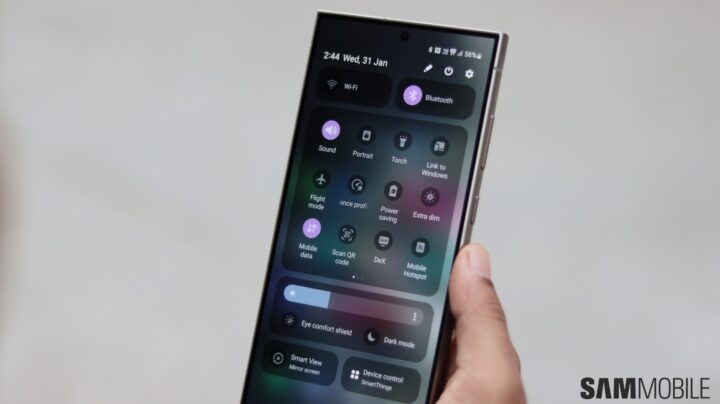
Capturing screenshots on Samsung Galaxy phones and tablets is incredibly straightforward. The One UI interface allows users to take screen grabs by pressing the volume down and power buttons simultaneously. For those looking to streamline the process even further, Samsung Galaxy devices also support gesture-based screenshot methods, a quick toggle feature, and can leverage Good Lock modules for added customization.
In this article, we aren’t going to dive into all the different ways you can take screenshots with One UI. Instead, we’re going to share a neat trick that outputs cleaner screen grabs by excluding certain user interface (UI) elements, potentially saving you the hassle of manual editing.
Take Screenshots Without the Status and Navigation Bars
Sometimes when sharing screenshots, you might prefer to omit the status and navigation bars to give a cleaner look to the images. This could be particularly useful if you’re working with multiple screenshots and want to avoid the tedious task of cropping out these UI elements manually.
Fortunately, there’s a simple setting you can adjust to automatically capture screenshots without including the status and navigation bars on your Samsung Galaxy device. Here’s how to do it:
1. Open the **Settings** app on your Galaxy device.
2. Navigate to **Advanced features**.
3. Select **Screenshots and screen recordings**.
4. Toggle **Hide status and navigation bars** to ON.
With this option enabled, future screenshots will automatically exclude both the status bar at the top and the navigation bar at the bottom of the screen. This results in a neater image and a slightly shorter aspect ratio for the screenshots, as the typically visible UI elements are cropped out rather than simply being hidden.
By employing this setting, Galaxy phone and tablet users can enjoy sharing screenshots that offer a more immersive view of the content, without extraneous distractions. This can be especially useful for presentations, creating tutorials, or simply maintaining privacy by not displaying notification icons or navigation buttons.
Additionally, if you prefer a visual guide, there’s a handy video walkthrough available on how to utilize this feature and make your screenshots cleaner on a Samsung Galaxy device. Here’s the link to the video tutorial: [Samsung Galaxy Cleaner Screenshot Feature](https://www.youtube.com/watch?v=gl0WtvbD-KQ).
Remember, this small adjustment in the settings can make a big difference in the final appearance of your screen grabs, providing a more polished look with minimal effort.