Jailbreaking a Kindle isn’t exactly a “practical for everyone” project, but it has become surprisingly easy—and the payoff can be huge if you want more freedom than Amazon’s default setup allows. With the WinterBreak or AdBreak methods, most Kindle models can be opened up to new apps, more file formats, and power-user features that turn a basic e-reader into something far more flexible.
Why people are jailbreaking Kindles right now
The main draw is simple: a jailbroken Kindle can do things a stock Kindle can’t (or won’t). That includes installing third-party software, improving format support, adding tools Amazon never intended for the device, and taking back control over updates and features that can change over time. For readers who rely on DRM-free libraries, alternate bookstores, PDFs, EPUBs, or self-hosted collections, this can be a game-changer.
WinterBreak vs. AdBreak: what to know before you start
The first step is checking whether your Kindle model and firmware version are compatible. Compatibility varies by device, and the newest models may be more limited. After confirming support, you’ll generally choose one of two approaches:
WinterBreak: Still works, but may require a workaround to prevent automatic system updates—some users fill storage to reduce the chance of an update slipping through. It’s not difficult, but it’s an extra step.
AdBreak: A convenient option for ad-supported Kindles, since it avoids that storage-filling workaround and can streamline the process.
Whichever route you pick, the process is guided with step-by-step instructions and typically takes under 15 minutes from start to finish.
A common “stuck” moment on Windows
One hiccup that catches people is locating a hidden folder in the Kindle’s file system (often the .assets folder). On Windows, this may require changing File Explorer settings—specifically, disabling the option that hides protected operating system files. Once Windows is set to show those hidden items, the rest tends to go smoothly.
Don’t skip the post-jailbreak step: disable OTA updates
After jailbreaking, it’s important to complete the post-jailbreak steps that disable over-the-air (OTA) updates. Even if the current Kindle software version is exploitable today, a future update could patch the vulnerability and undo your progress. Disabling updates helps keep your jailbroken setup stable.
Also worth noting: during the jailbreak process you might see multiple app errors pop up. These can look alarming, but they’re commonly reported and are generally safe to ignore if the overall steps complete correctly.
Turning a jailbroken Kindle into an app-friendly device with KindleForge
Once you’re back on the Kindle home screen, one of the most useful additions is KindleForge—essentially an app hub for jailbroken Kindles. The idea is simple: copy the downloaded files to your Kindle’s downloads folder, run the provided script, and you’ll unlock one-click installs for a range of apps.
Some standout options available through KindleForge include:
Toggle Ads: Enables or disables ads on ad-supported Kindles
KOReader: A powerful alternate reading app with broad format support
kTerm: A terminal emulator for advanced users
Alpine Linux: A lightweight Linux port for Kindle tinkering
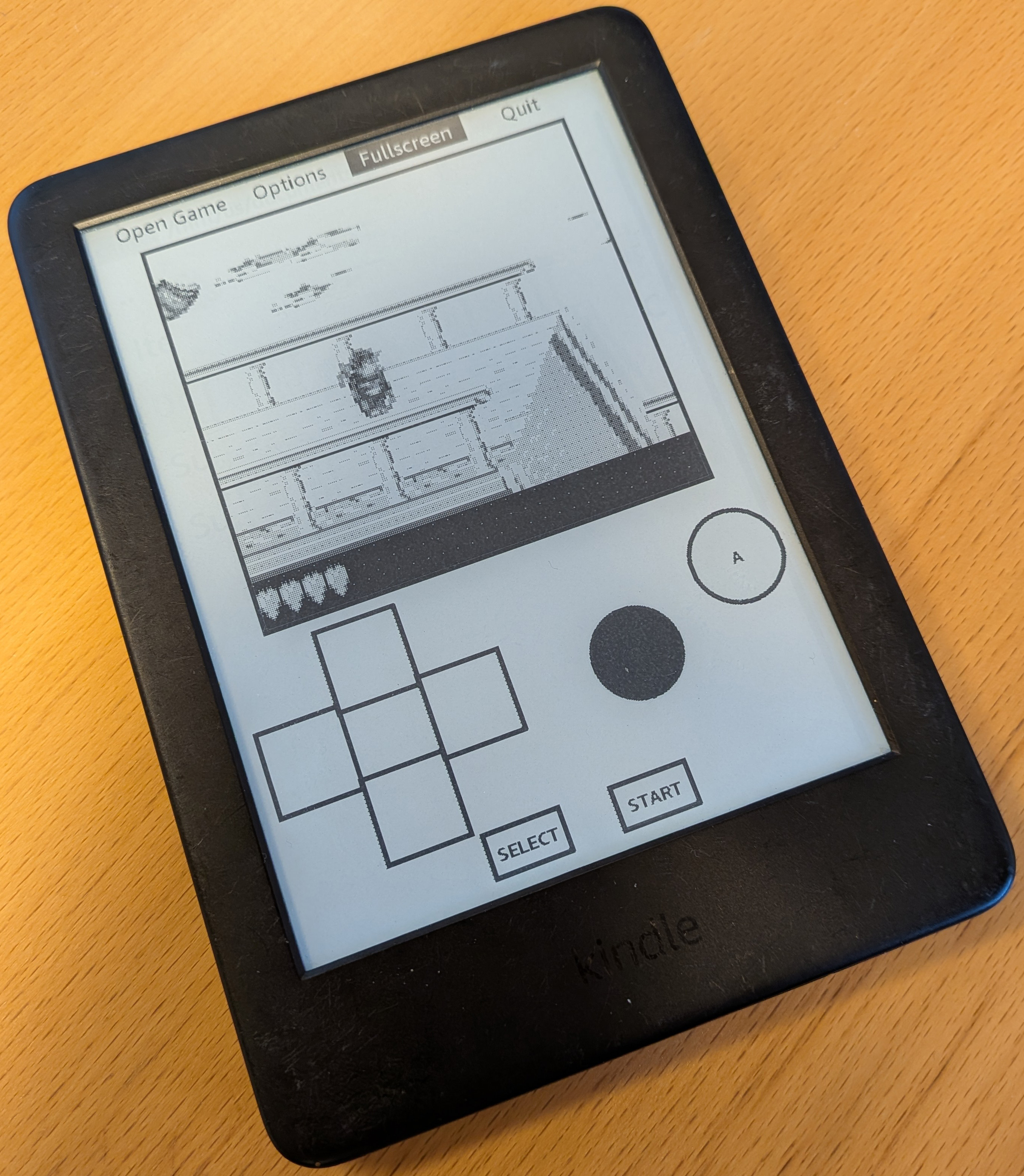
Gambatte-K2: A Game Boy emulator (more fun than practical on e-ink)
Gnome Games Suite: Classic games for experimentation
KWordle: A Wordle-style clone
KNotes: Simple note-taking
KinAMP: MP3 audio playback (including Bluetooth headphone use)
LARKPlayer: M4B audiobook support
KindleCraft: A basic Minecraft server project
It’s a mix of genuinely useful tools and “because we can” experiments. An emulator on an e-ink screen, for example, is more of a tech demo due to the refresh rate and limited touch input—but it’s still a fun way to see what the hardware can do.
KOReader: the real reason many people jailbreak a Kindle
While extra apps are a bonus, KOReader is the standout for most readers. It can massively expand what your Kindle can read and how you read it, with support for popular formats like EPUB, PDF, and MOBI, plus many more file types that stock Kindle software doesn’t handle well.
It also gives you multiple ways to get books onto your device, including:
USB transfer
Cloud and network options such as Dropbox, FTP, or WebDAV
SSH transfers for power users
KOReader’s interface is straightforward rather than flashy, but it’s built for control. Once you point it at your book folder, you’ll see your library and can start reading immediately—then dig into customization.
Customization and reading tools you don’t get on a stock Kindle
KOReader is packed with features that go well beyond Amazon’s default reading experience, including:
Hot corners and gesture controls
A “book map” for fast navigation
Font, font size, margins, spacing, and contrast tweaks
Progress syncing options and deeper library management
Optional integration with Calibre
Cross-device tracking if you run your own KOReader server
In short, it turns a Kindle into a much more open, format-friendly e-reader—ideal for anyone building a personal DRM-free library or using multiple sources for ebooks and documents.
Is it worth it?
Kindles aren’t the fastest e-readers on the market, and they won’t suddenly become premium tablets. But they are affordable, widely available, and excellent e-ink reading devices at their core. Jailbreaking lets you extend that value: you gain better format support, more control over your device, and access to features and tools that can make an older Kindle feel fresh again.
For readers who want flexibility and don’t mind a little tinkering, jailbreaking a Kindle with WinterBreak or AdBreak—then installing KOReader and KindleForge—can dramatically upgrade what your e-reader is capable of.