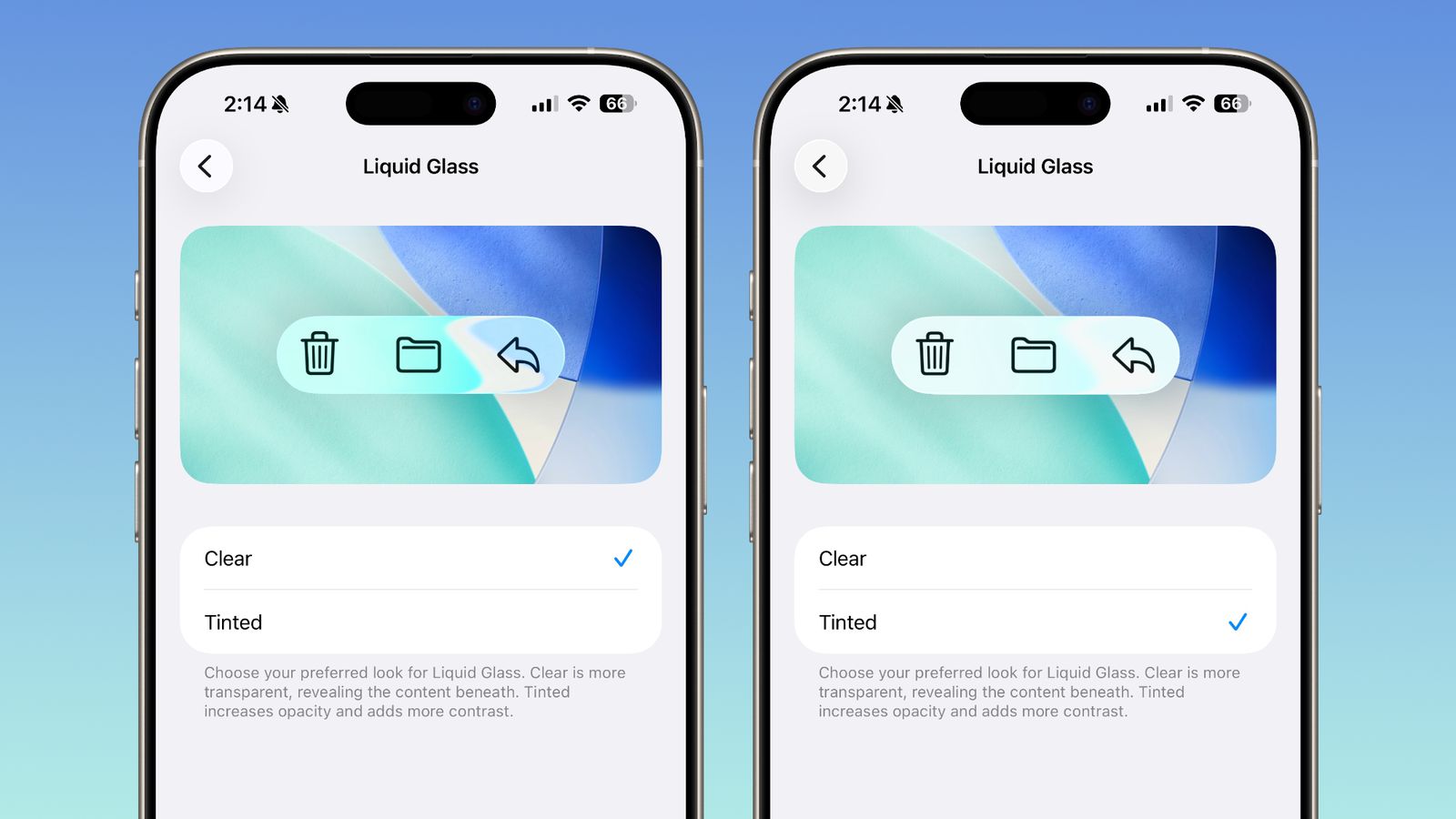
Apple’s Liquid Glass UI in iOS 26 turned heads for its sleek, modern look—and sparked debate for its heavy transparency. While some users love the dynamic, glassy layers, others say the see-through elements can make text and controls harder to read, especially over busy wallpapers. Apple appears to be taking that feedback seriously. In the iOS 26.1 beta, there’s a new way to dial back the effect for better clarity.
The update adds a simple two-option control in Settings under Display & Brightness. Instead of a fine-grain slider, you choose between Clear—the default Liquid Glass style—and a new Tinted option. Tinted increases opacity and boosts contrast across interface elements, improving readability and reducing visual distraction without abandoning the overall design language.
If you’re running the beta, here’s how to try it:
– Open Settings
– Tap Display & Brightness
– Select Clear or Tinted to set your preferred transparency level
This change follows earlier tweaks Apple made during the iOS 26 beta cycle, where the company already toned down some transparency before the public release. For those who still found the look too translucent, Tinted is a straightforward fix that puts control back in the user’s hands.
Notably, the same toggle is showing up in the latest betas for iPadOS and macOS Tahoe 26.1, signaling a coordinated, system-wide adjustment. That means a more consistent experience across devices and a helpful boost for accessibility, especially for users who prefer stronger contrast or who often switch wallpapers.
If Apple keeps to its usual pace, the final iOS 26.1 release shouldn’t be far off. When it lands, everyone will be able to choose the interface feel that works best for their eyes—whether that’s the airy, layered look of Clear or the more grounded, high-contrast Tinted setting.