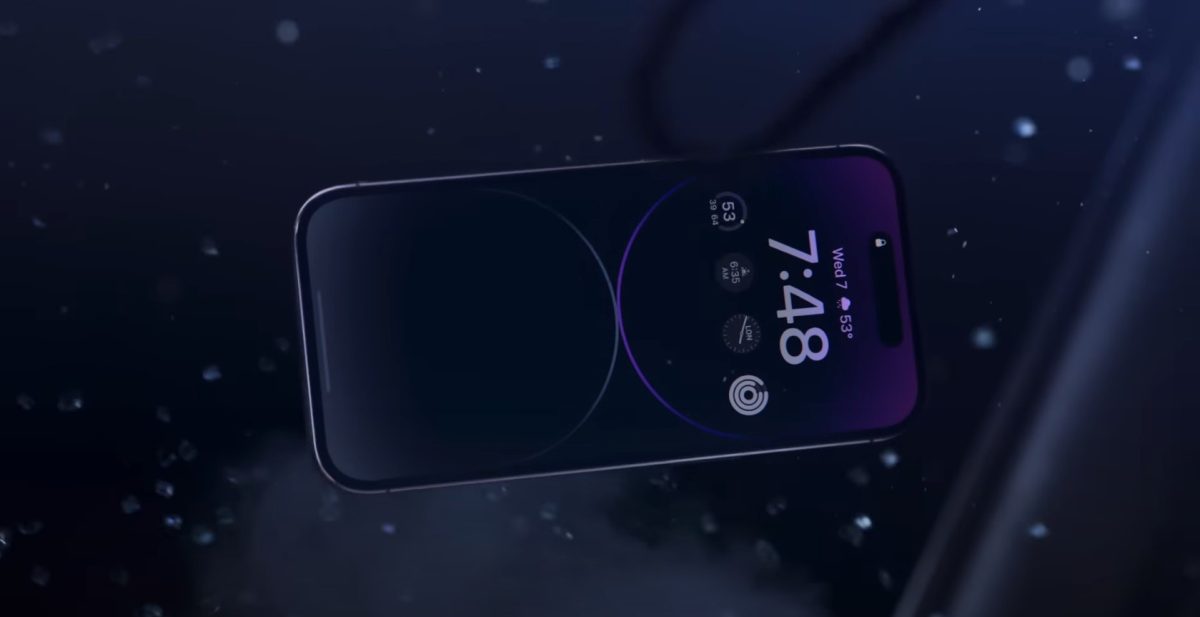
iPhone Crash Detection helps save 16-year-old after falling asleep at the wheel
Apple’s push to build safety into the iPhone and Apple Watch has paid off again. A 16-year-old, Lindsay Leskovac, dozed off while driving home, veered off the road, and crashed into poles and trees. The impact left her unconscious and trapped with multiple fractures, including serious injuries to both legs and her cervical spine. She couldn’t reach her phone or call for help—but she didn’t have to. Her iPhone detected the severe crash, automatically dialed 911, and shared her location so first responders could find her fast.
According to local reports, dispatchers stayed connected for about 22 minutes. Those early moments made all the difference, guiding rescue workers right to the scene when Lindsay couldn’t speak for herself. Her mother later said she had no idea the iPhone could do this and now urges others to check that the feature is enabled.
What is Crash Detection and who can use it?
Crash Detection is designed to recognize severe car crashes. When it detects a major impact, your device sounds an alert and displays an emergency slider. If you don’t respond within a short countdown, it automatically calls emergency services and shares your location. It can also notify your emergency contacts.
Supported devices include:
– iPhone 14 and newer running iOS 16 or later
– Apple Watch Series 8, Apple Watch SE (2nd generation), and Apple Watch Ultra or newer running watchOS 9 or later
On supported Apple Watch models, the watch can place the call even if the iPhone isn’t nearby, as long as the watch has cellular service or a Wi‑Fi connection. If you’re in an area without cellular or Wi‑Fi and you have an iPhone 14 or newer, Emergency SOS via satellite may help connect you with emergency services in regions where it’s available.
How to make sure Crash Detection is turned on
It’s on by default, but it takes less than a minute to confirm.
On iPhone:
– Open Settings
– Tap Emergency SOS
– Make sure Call After Severe Crash is turned on
– Optional but recommended: set up Medical ID and emergency contacts in the Health app
On Apple Watch:
– Open the Watch app on your iPhone
– Tap Emergency SOS
– Ensure Call After Severe Crash is enabled
Pro tips for better emergency responses
– Set up Medical ID with key health details and emergency contacts
– Keep Location Services on so your device can share your location during an emergency
– Make sure critical notifications and volume are not silenced while driving, so you can hear alerts
– If you have multiple Apple devices, enable the feature on each one
A powerful reminder
For Lindsay, this technology turned a near-fatal crash into a story of survival. It’s a wake-up call for every driver and family: check your settings, talk to teens about drowsy driving, and use the tools built into your phone and watch. The smallest toggle could be the one that saves your life.