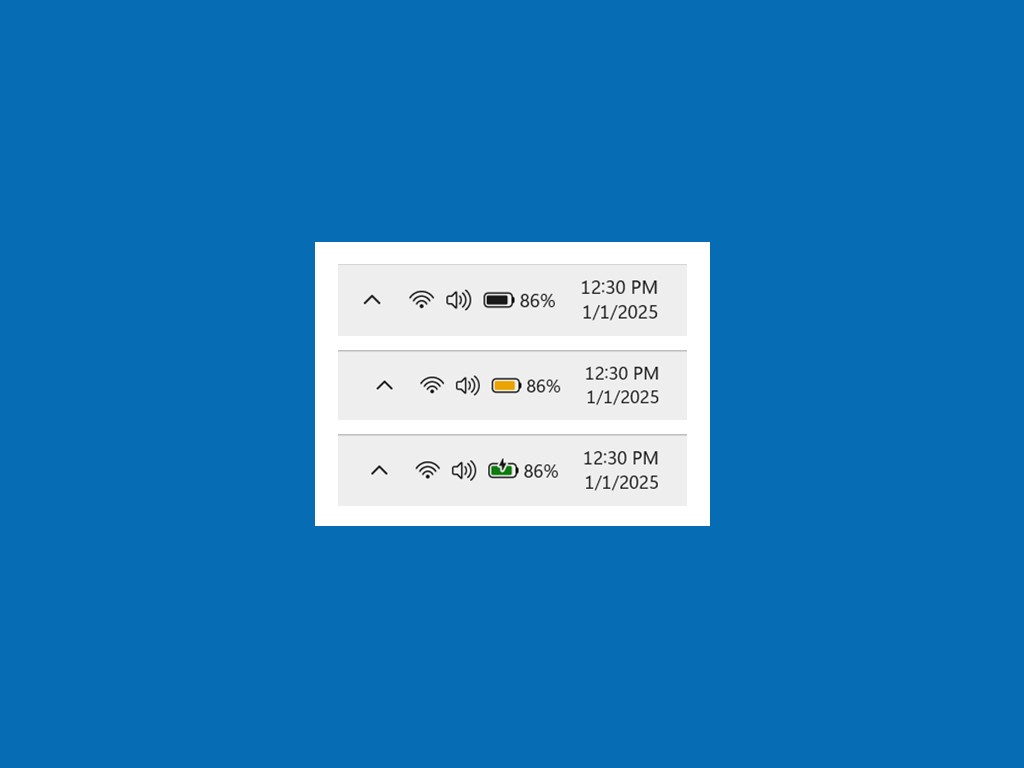
Microsoft has unveiled a fresh Windows 11 Insider Preview Build, and it is turning heads with an engaging update to the battery icon. This change is designed to provide users with immediate insight into their PC’s battery status, transforming the way we interact with technology’s most fundamental elements.
The latest build, identified as Windows 11 Insider Preview Build 26120.3000 (KB5050103), introduces a color-coded battery icon system. Traditionally, Windows 11 devices have displayed a simple black or white battery icon depending on the light or dark mode setting. The new development allows these icons to display in black, yellow, or green. The green icon reveals a charging battery and a healthy state, the yellow hinting at power-saving mode, and the red signaling that the battery is critically low, calling for immediate charging. This color coding simplifies understanding the battery condition at a quick glance.
These vibrant new icons are integrated into various aspects of the Windows 11 interface. Users will spot them on the taskbar in the system tray, within the Quick Settings flyout, and in the Settings application. Microsoft is also planning to extend these visuals to the lock screen in upcoming builds.
Moreover, this build introduces the capability to display battery percentage directly on the taskbar, a much-anticipated feature. Previously, users needed to hover over or click the battery icon to check their battery level, but now, with a simple toggle in the Settings, the percentage appears alongside the battery icon, offering an immediate readout of battery status.
This Windows 11 Insider Build also tweaks the lightning logo on the battery indicator, shifting its position to the center when connected to a power source, providing a cleaner look on the taskbar.
These advancements are currently being released incrementally to Windows Insiders in the Dev Channel. This strategic rollout allows Microsoft to gather crucial user feedback before these features become available more widely, ensuring a smooth user experience for all. Whether you’re working, gaming, or merely surfing, these updates refine how you manage and monitor your power, reinforcing Microsoft’s commitment to user-friendly innovation.


