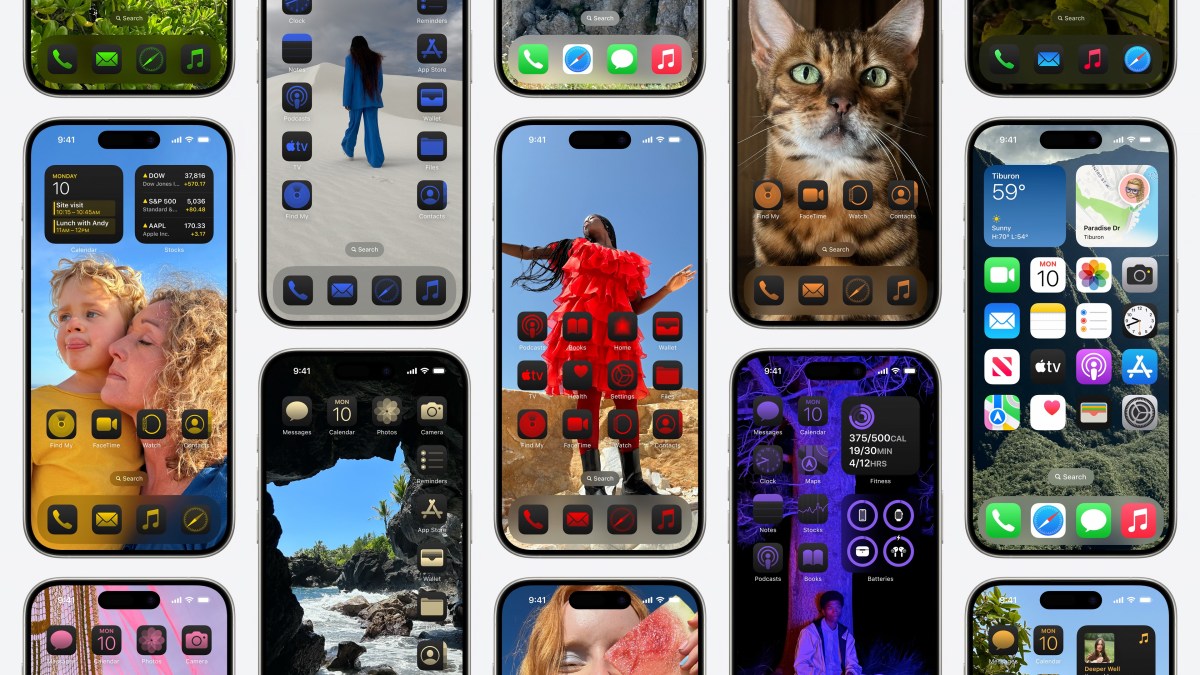
With the release of iOS 18, Apple is revolutionizing iPhone customization. Previously, customization was limited to adding widgets, rearranging Home Screen pages, applying wallpapers, and tweaking the Lock Screen. Power users would often use third-party apps to customize icons via iOS Shortcuts or create their own designs using tools or images from various sites.
Now, iOS 18 brings an integrated tool that allows users to change all their icons to match a new color scheme effortlessly.
In addition, you can freely arrange icons and widgets, no longer confined to the mandatory grid layout. This means you can frame your wallpaper or place icons solely at the bottom of your screen—the possibilities are endless.
Customization options might have become a bit complex as Apple kept introducing new features, but iOS 18 provides unparalleled control over the iPhone’s user interface. A simple press-and-hold on the Home Screen lets you tap the “Edit” button in the upper-left corner to enter customization mode. From there, you can add widgets, edit Home Screen pages, or use the “Customize” option to change the color and shading of icons and widgets.
iOS 18 offers four options for icons: standard light and dark modes, Automatic mode (which shifts from light to dark as night falls), and a new “Tinted” option. The Tinted mode uses an eyedropper tool to pick a color from your wallpaper, tinting the lighter parts of your icons accordingly. For example, a nature-themed wallpaper allows you to match your icons to the color of the sky. Further customization is possible with bottom sliders adjusting shade and saturation.
Despite the new innovative feature, the complexities have sparked some criticism, especially from designers. They argue that the resulting Home Screen doesn’t align with Apple’s usual sleek design aesthetics. However, that’s the appeal—it allows for a highly personalized look.
This feature is particularly appealing to younger users who embraced iOS 14’s customization trends. Back then, Pinterest saw a surge as users sought images for custom icons and themes. Apple responded by streamlining how custom icons function, introducing only a small pop-up instead of launching the iOS Shortcuts app momentarily.
Until now, custom icon colors were not accessible without shortcuts. Although you can’t change an icon’s design without third-party help, developers can offer alternative icons within their app downloads, sometimes as part of paid upgrades. After selecting a preferred icon, you can choose how it appears—light, dark, or tinted.
Dark icons provide a different aesthetic, focusing more on the wallpaper by sitting on black backgrounds, while tinted icons feature customized colors. Though dark icons may not be universally appealing, you can opt to create a Home Screen with more muted shades, enhancing personalization.
For a more uniform look, toggle the option for “Large” icons in customization mode, which slightly enlarges the icons and removes their text labels, doing the same for widgets. Adjust the tint saturation and switch to light mode for a minimalist appearance, emphasizing black, white, and gray shades.
iOS 18 also lets you achieve a minimalistic Home Screen by forgoing icons altogether. Updated apps like Widgetsmith now utilize large, label-less widgets for sleek customization. These widgets offer shortcuts to various functions and integrate seamlessly into the Home Screen for a refined look.
For even more minimalist options, the Dumb Phone app provides a streamlined interface reminiscent of pre-smartphone days. Users can also fine-tune their themes to light or dark modes, potentially cutting down screen time.
New icon placement options enable your theme and wallpaper to blend more creatively. Apps like Themify feature themes where icons integrate into the background, adding a new dimension to personalization. Themes can make icons look like planets or wall décor depending on their placement.
Other popular apps for personalization, such as Brass, Aesthetic, Widgy, and Wallaroo, also support various theme options and features like Lock and Standby screens.
Beyond the Home Screen, iOS 18 allows users to swap app shortcuts like the Camera and Flashlight on the Lock Screen, reorganize the Control Center, and add third-party app actions, offering substantial customization.
Excited about iOS 18 customizations? Share your creations on Threads or Bluesky, and let’s explore the new possibilities together!