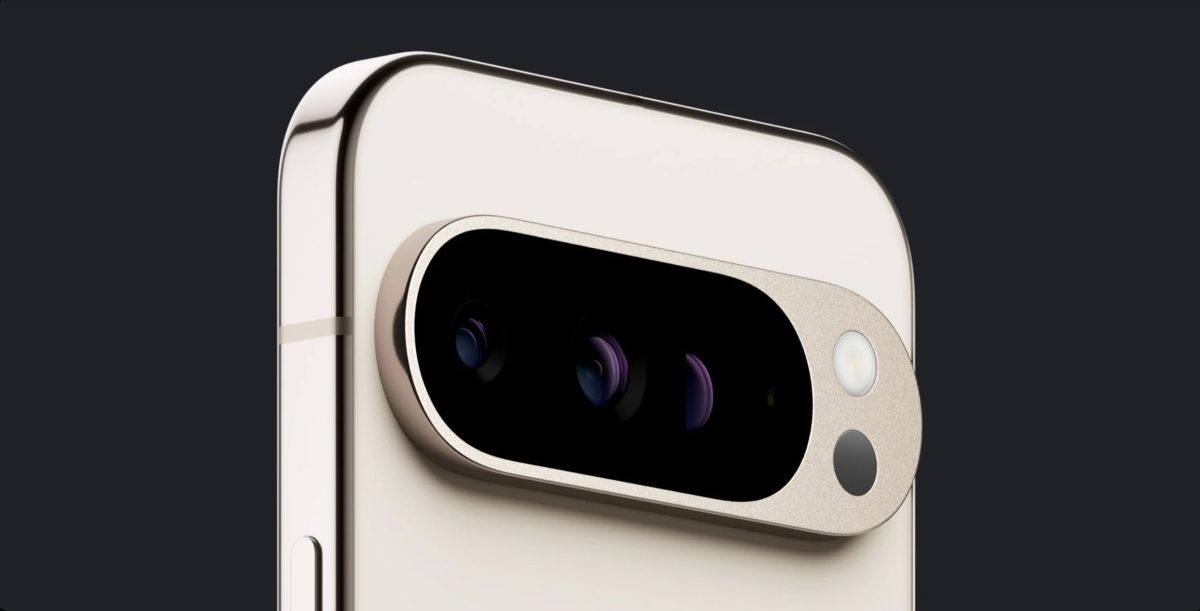
Google has been diligently working on advancements for users, especially with the Pixel 9 series. The Pro model has garnered significant attention due to its enhanced camera layout and improved battery life. Key features such as the Add Me function for group photos have been included, but the standout feature is the Satellite SOS. This new capability allows users to send messages in areas with poor or no cellular coverage, a potentially life-saving feature.
To utilize the Satellite SOS on the Pixel 9 and Pixel 9 Pro, follow these steps:
1. **Demo the Feature**: Open Settings, navigate to Safety & Emergency, and select Satellite SOS. The device will provide demo instructions. In an emergency with no connectivity, dialing 911 will prompt a red Satellite SOS button if no network is detected.
2. **Fill in the Questionnaire**: Describe your situation through a series of options and follow-up questions specific to your condition.
3. **Notify Emergency Contacts**: Choose to notify pre-set emergency contacts. They will receive your location and situation details.
4. **Find and Connect to a Satellite**: Follow on-screen instructions to move your phone and connect to a satellite by aligning the movement with a central circle.
5. **Notification of Connection**: You’ll be notified upon successful satellite connection, and your message will be sent.
6. **Sending the Initial Message**: Garmin Response handles satellite SOS communication. Once the initial message is sent, users can continue communication via the Google Messages app.
7. **End the SOS Services**: To end the demo or the communication session, select the End icon at the top right corner. A message will appear before ending the services if further help is needed.
This Satellite SOS feature is designed for emergencies when conventional communication methods are unavailable, emphasizing its importance in Google’s safety enhancements for the Pixel 9 series.


