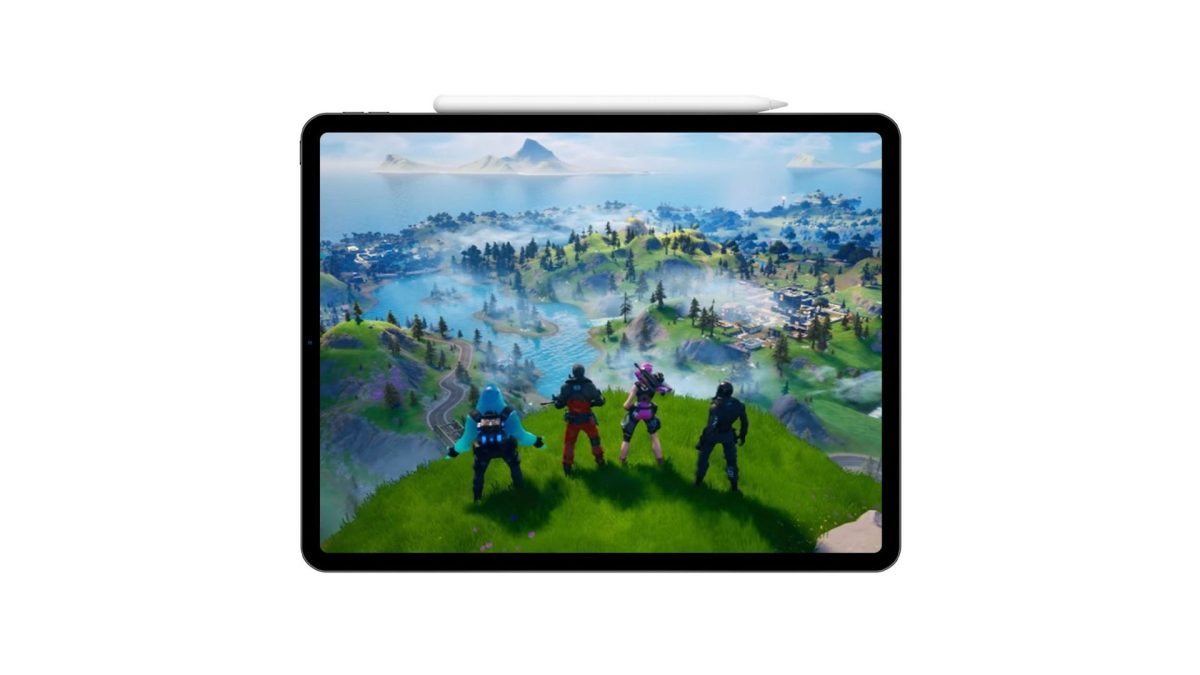
Epic Games and Apple have been engaged in a high-profile legal dispute, a result of which was Fortnite’s removal from the App Store. Despite challenging discussions on the App Store’s revenue-sharing policy, changes in the EU have permitted the return of Fortnite to EU iPhone and iPad users. For those eager to play Fortnite on their iPhone or iPad but based outside the European Union, a detailed installation guide awaits below.
Prerequisites for the Installation
Before you begin, it’s necessary to obtain a paid Apple Developer Account, which comes with an annual fee of $99. This tutorial will focus on the method that utilizes a Developer Account.
Finding the Fortnite IPA File
You’ll first need to source a Fortnite IPA file, which is the iOS app file format, typically requiring decryption via a jailbroken device. However, decrypted versions of the Fortnite IPA file can be found online. It’s crucial to choose a file compatible with your device for successful installation.
Registering an App ID with Your Developer Account
1. **Log in** to your Apple Developer Account on the official Apple Developer website.
2. Navigate to the **Account** tab and select **Identifiers** under Program Resources.
3. Click the **Plus Button** next to Identifiers to register a new App ID, then choose **App** when prompted.
4. Fill in a description and a Bundle ID for your app registration. For example, it could be “com.yourname.fortniteios.”
5. Enable both **External Virtual Addressing** and **Increased Memory Limit** in your app’s settings to avoid crash issues.
6. Click **Register** to finalize the creation of your new App ID.
Installing Fortnite using Sideload
With the computer-side work ahead, platforms such as Sideloadly will be instrumental. Follow these steps to sideload Fortnite onto your iOS device:
1. Download and install a platform like Sideloadly on your computer.
2. Connect your iOS device to the computer.
3. Enter your Apple ID connected to your paid developer account.
4. Choose your device and drag the decrypted IPA file into the application.
5. In the Advanced section, uncheck automatic bundle ID and input the Bundle ID you created earlier.
6. Begin the installation. If presented, select your team ID (though single-team users might not see this step).
7. Wait for the completion of your installation, which might take a couple of minutes.
Finalizing the Installation on Your iOS Device
After installing, ensure your device is in Developer Mode, which can be enabled through the Privacy & Security section in your device’s settings. You can launch the game once Developer Mode is active.
Conclusion
By carefully following these steps, you can successfully install Fortnite on your iPhone or iPad, regardless of your location outside of the EU. As developments unfold and additional methods become available, further guides will be provided to maintain access to one of the most popular games on your iOS devices. Remember to confirm the compatibility and security when sourcing your IPA files and to follow all developer account guidelines to ensure a smooth gaming experience.


