Setting up your own cloud gaming service can be an appealing alternative to purchasing dedicated gaming hardware. One convenient method to do this is with Steam Remote Play, which supports streaming games—even those not bought on Steam. For optimal performance, a robust Wi-Fi 5 (802.11ac) or Wi-Fi 6 network is recommended, in addition to having your gaming PC connected to your router via an ethernet cable. This will be particularly important for streaming games at 4K quality, as it requires a strong wireless connection.
To start, establish remote desktop functionality so that you can access your computer as if you were physically present. Assigning a static IP address can facilitate remote access. To enable game streaming, you’ll need a special disconnect script on your desktop. This script ensures that when you disconnect your Remote Desktop session, the screen won’t lock, thus allowing game streaming to proceed smoothly.
You can create this script by inputting the following command into Notepad and saving it as a .bat file on your desktop:
“`
@powershell -NoProfile -ExecutionPolicy unrestricted -Command “$sessionid=((quser $env:USERNAME | select -Skip 1) -split ‘s+’)[2]; tscon $sessionid /dest:console” 2> UnlockErrors.log
“`
It’s crucial to execute this batch file with administrative privileges whenever you plan to disconnect before starting a game remotely.
While not completely necessary, going headless can help if you don’t want a monitor left switched on while you’re gaming from a distance. Windows typically requires a connected and active monitor to play games. To circumvent this, you can use an HDMI dummy plug. These devices trick Windows into detecting a 4K monitor, allowing you to run a truly headless setup. Dummy plugs are readily available online, such as on Amazon for a nominal price.
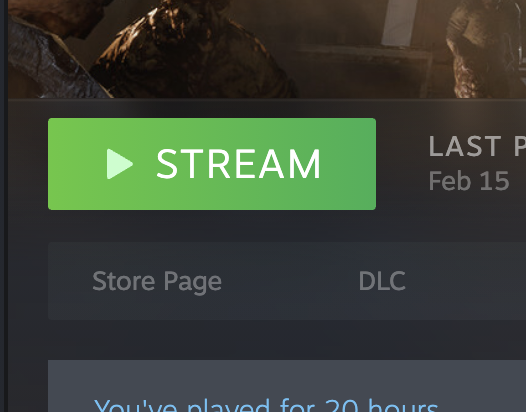
Once everything is set up, start Steam on your PC or Steam Deck—or Steam Remote Play on mobile devices—to pair your systems. You should now see all the games installed on your gaming PC with the option to stream them. Steam Link supports various controllers, including those from PlayStation and Xbox. This setup also enables streaming to different devices, like smartphones or work computers, assuming your home’s upload speed and external download speed are adequate, along with a reasonable ping.
This approach to creating a headless gaming PC and your own cloud gaming service is a great way to repurpose your current hardware and enjoy gaming flexibility without committing to new consoles or devices.


