ChatGPT Voice can now access connected apps, but approvals still require your screen
OpenAI has expanded ChatGPT’s voice mode with support for connected apps, making the assistant more useful during live conversations. The update allows ChatGPT Voice to pull information from services such as Gmail, Calendar, and Slack when you ask questions out loud.
That means you can now ask ChatGPT about your inbox, upcoming meetings, or a work conversation and receive an answer while speaking naturally. In addition to the spoken response, ChatGPT can also display written results in the chat, making it easier to review details, copy information, or follow up later.
The feature is available on the web, iOS, and Android. Free and Go users can also access it, though availability depends on which app connections their plan supports. Voice support is also being added to ChatGPT Work, the workspace designed for documents, spreadsheets, and presentations, but users need access to both Voice and Work to use it there.
The new feature does not automatically give ChatGPT extra access to your accounts. OpenAI says existing app connections, permissions, and usage limits still apply. In other words, if you have already connected Gmail, Calendar, or another service to ChatGPT, voice mode can use the same permissions you previously granted.
For example, if your Gmail account is connected and ChatGPT has permission to read or send emails, voice mode can work with those existing rights. However, that does not mean every action happens instantly just because you say it out loud.
One of the most important limitations is that sensitive actions still require approval on the screen. If ChatGPT drafts an email and asks whether you want to send it, simply saying “yes” is not enough. You must review the action visually and approve it using the on-screen controls.
This is an important safety measure, especially for users who rely on voice mode while driving, walking, or keeping their phone in a pocket. If an action requires confirmation, ChatGPT will pause and wait until you approve or decline it on the display.
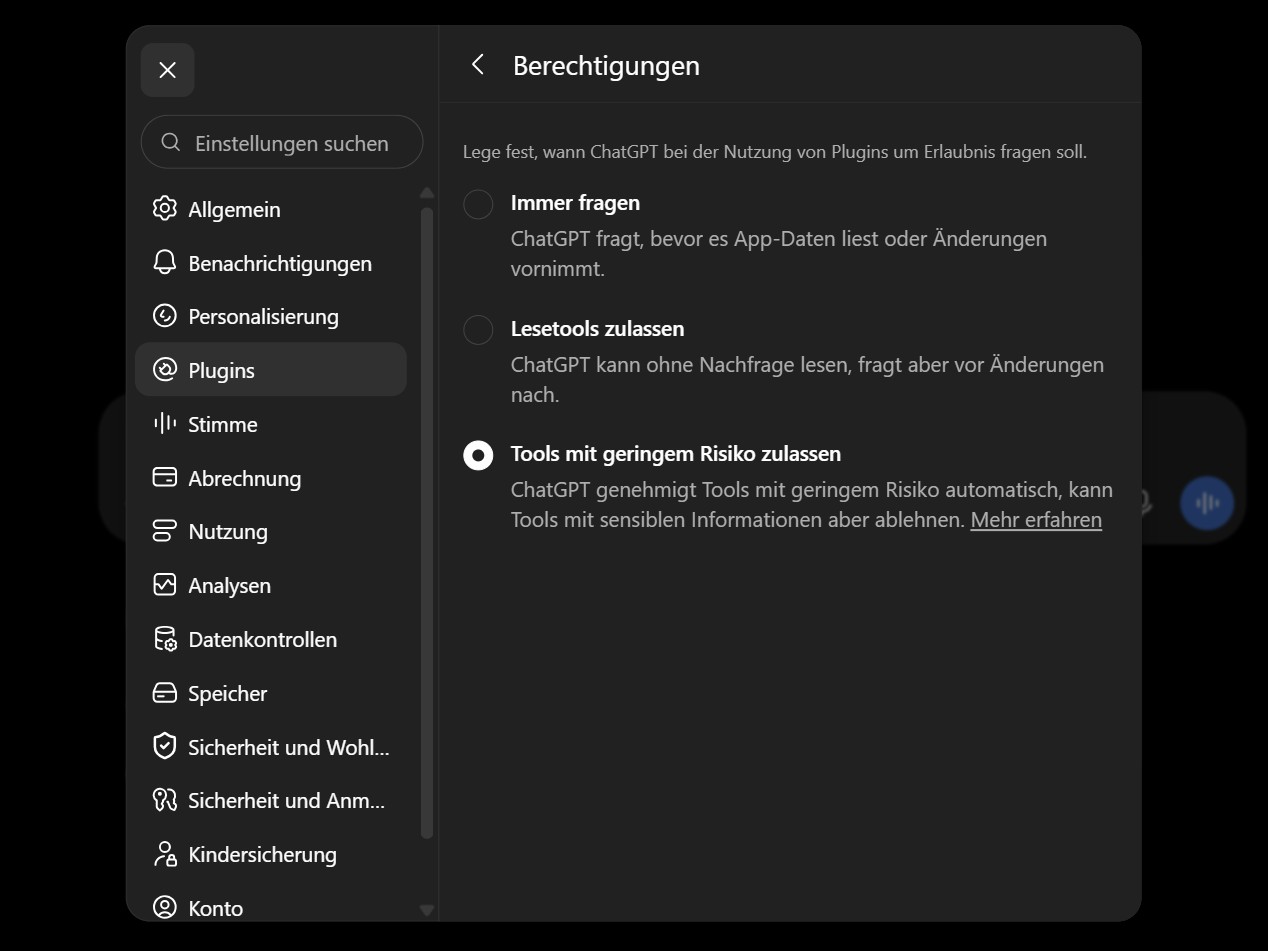
The behavior depends on your permission settings. These controls can be found under Settings, Plugins, and Permissions. Users can decide how often ChatGPT should ask before reading app data or taking action.
The “Always ask” option requires ChatGPT to request approval before reading information from connected apps or making changes. This is the safest choice for people who want full control over every interaction.
The “Allow read actions” setting lets ChatGPT read information from connected apps without asking first, but it still requires approval before making changes. With this enabled, you could ask, “What emails did I get today?” and ChatGPT may answer directly from Gmail without another prompt.
The “Allow low-risk actions” option allows some lower-risk tasks to happen automatically while still asking for approval for more sensitive actions. OpenAI considers actions such as sending emails, messages, comments, or invitations to be higher risk. Creating, editing, or deleting files, changing security settings, and financial transactions are also treated as higher-risk actions.
OpenAI’s help information also refers to an “Allow all actions” setting, which would remove approval prompts in more cases. However, this option may not appear for every user or account type.
For many people, the biggest privacy consideration is not sending messages but reading data. If ChatGPT Voice can read connected app content without prompting, it may answer questions about emails, calendar events, or workplace messages immediately. That can be convenient, but it also means users should carefully review their permission settings.
If you want ChatGPT to ask before accessing connected app data every time, choose “Always ask.” If you are comfortable with voice mode reading information but want approval before anything changes, “Allow read actions” may be a better balance.
It is also important to know that changing app permissions does not disconnect an app entirely. Adjusting these settings only changes how ChatGPT handles approval prompts. If you want to remove access completely, you need to go to Settings, open Plugins, select the connected app, and disconnect the account from there.
The update also comes with data retention details users should understand. OpenAI stores audio clips from live voice conversations for 30 days and deletes them with the associated chat unless they are needed for security or legal reasons. Recent privacy updates do not automatically change those defaults.
Overall, connected apps make ChatGPT Voice significantly more practical for everyday use. Being able to ask about your inbox, schedule, or workplace messages by voice could save time and reduce the need to switch between apps. At the same time, the approval system shows that OpenAI is trying to prevent accidental or unauthorized actions, especially when messages, files, or account settings are involved.
For users who plan to try the feature, the best first step is to review connected apps and permission settings before using voice mode with email, calendars, or work tools. ChatGPT Voice is becoming more capable, but its usefulness now depends heavily on how carefully users manage access and approvals.