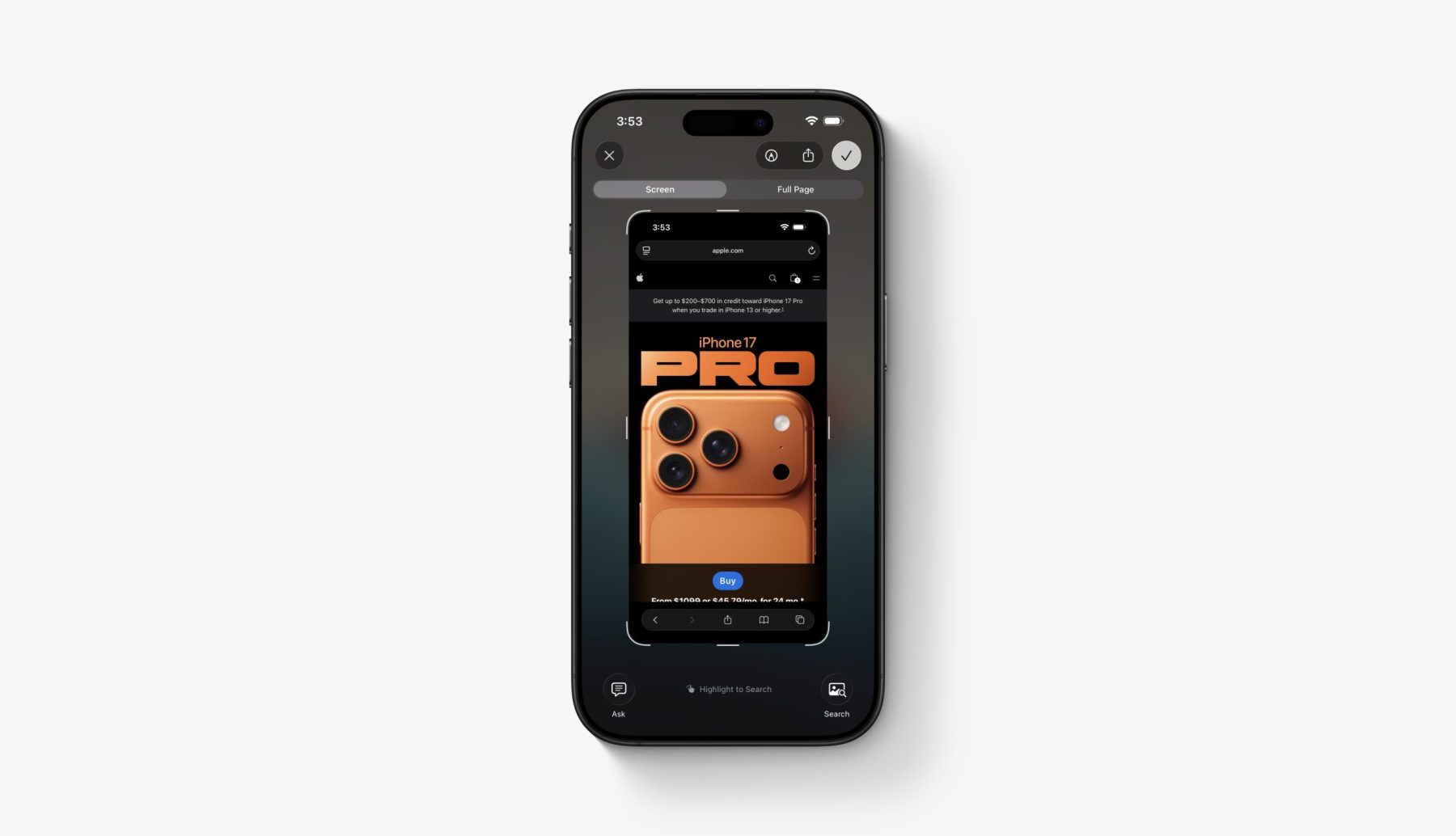
Apple is bringing a familiar, long‑requested shortcut to iPhone with iOS 26: a fast, privacy‑first way to circle part of your screen and search it instantly. Powered by the company’s new Visual Intelligence framework, this tool lives right inside the screenshot editor, so you can highlight anything, run an image search, or tap Ask GPT for context in seconds—no extra apps required.
At its core, Visual Intelligence helps your iPhone understand what’s on the screen. It can read text, recognize objects and images, and act on exactly what you’ve circled. After you take a screenshot, new options appear along the bottom—Ask GPT, Image Search, and more—so you can choose how you want to investigate what’s in front of you. It mirrors the convenience of similar Android features while keeping Apple’s hallmark focus on speed and privacy. Interpretation happens on‑device through Apple Intelligence, and when you choose Ask GPT, the request is sent to ChatGPT via a protected pathway designed for user privacy.
Key points to know
– iOS 26 adds a Circle to Search–style experience to the screenshot interface through Visual Intelligence.
– You can choose Ask GPT, Image Search, or compatible third‑party options like Pinterest for visual lookups.
– Available on iPhone models that support Apple Intelligence, including iPhone 15 Pro and newer.
How to use it
1) Take a screenshot by pressing Volume Up and the Side Button at the same time.
2) Tap the preview that appears in the lower‑left corner.
3) In the toolbar, look for Ask GPT and Image Search at the bottom.
4) Use your finger to circle or highlight the exact part of the screenshot you want to analyze.
5) Choose an action: tap Ask GPT to get an explanation or answer, or use Image Search for visual results.
6) Save or close the screenshot when you’re done.
Why this matters
– Instant answers without switching apps: highlight a product, recipe, landmark, or snippet of text and get results immediately.
– Private and efficient: Apple Intelligence processes your selection on‑device, keeping the experience fast and secure.
– No setup required: it’s built into the screenshot workflow, so it feels natural from the first use.
Expanded features through third‑party apps
If you have compatible apps installed, iOS 26 adds their tools directly to the Visual Intelligence panel. For example, installing Pinterest adds its Lens Search, which can surface similar styles, items, or inspirations based on your screenshot. These integrations are powered by Visual Lookup Extensions, a developer framework that lets apps tie into Apple Intelligence. You can enable or disable these extensions in Settings; if you turn them off, the screenshot interface returns to its standard layout.
With Visual Intelligence in iOS 26, iPhone gains a powerful, on‑device way to turn any screenshot into instant insight. Whether you’re identifying something you saw online, gathering quick context with Ask GPT, or hunting down similar images, it all happens in a couple of taps—fast, focused, and built right into your phone.