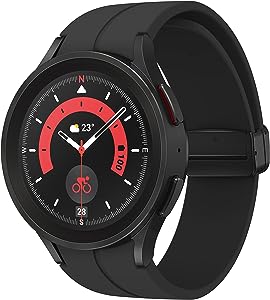
The Samsung Galaxy Watch series offers an impressive combination of style and technology. However, users may face inconsistent battery life, which can be frustrating, especially when features you rarely use deplete your power reserves. To combat this, owners of the Galaxy Watch 4, 5, or 6 can significantly improve their battery life through a process known as “debloating.”
Battery issues are a common topic on various forums where users report erratic performance. Often, simple fixes like turning off Wi-Fi, Bluetooth, or the always-on display aren’t enough, especially if hidden apps or services are draining the battery.
One effective solution to achieve consistently good battery life is through debloating, which means removing unused features and apps from your watch. This process isn’t as straightforward as uninstalling apps from the device’s app manager; it requires using ADB (Android Debug Bridge) commands. Although it may sound technical, with the right instructions, it’s quite manageable.
To begin, you’ll need the Android SDK Platform Tools, which allows you to issue commands to uninstall specific apps. After downloading and extracting this toolkit, you can connect to your watch via ADB. Here is a summation of the steps involved:
1. Activate Developer Options on your watch by tapping the software version under “Settings” and then “About Watch.”
2. Ensure your watch’s Wi-Fi is connected to the same network as your computer.
3. Note your watch’s IP address from the Wi-Fi settings.
4. Enable ADB Debugging and Wireless Debugging from within Developer Options.
5. Pair your device to your computer using the ADB pair command and the previously noted IP address.
6. Establish a connection with the ‘adb connect’ command followed by the IP address.
7. Use the ‘adb shell’ command to start debloating.
Using commands like “pm uninstall -k –user 0 [package name]” or “pm disable-user –user 0 [package name]”, you can remove or disable unwanted apps such as Bixby. It’s important to consider which apps you need before removing them. Additionally, these commands only remove the apps for the current user profile but don’t delete them entirely, which makes it easy to re-enable any app if desired.
For a comprehensive list of debloatable apps and a user community that shares experiences on this topic, you can check threads on XDA Developers or popular technology forums. Reports indicate that after debloating, many users notice a significant improvement in battery duration.
Remember to turn off Wireless Debugging and ADB after you’ve completed the process to avoid any negative impact on your watch’s battery life. Also, keep in mind that a factory reset will restore all removed apps.
If you’re using a non-Samsung phone with your Galaxy Watch, you might miss out on certain features like Blood Pressure and ECG monitoring. Nevertheless, with ADB, there’s a possibility to install modified versions of Samsung Health Monitor that could enable such features, although this involves unofficial installers and comes with its own set of caveats.
In terms of deals, you may find the Samsung Galaxy Watch 5 available with significant discounts from various retailers.
Improving battery life on your Galaxy Watch can enhance your overall experience with one of the most sophisticated smartwatches on the market. By debloating your device, you ensure that only the apps and features you value most are consuming power.