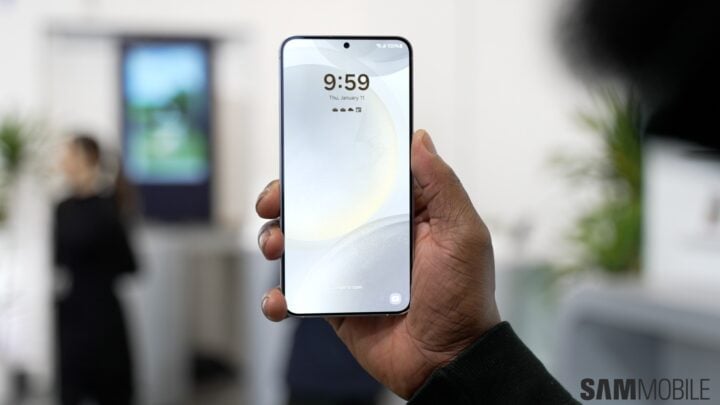
The Samsung Galaxy S24 series is equipped with the latest One UI 6.1, bringing several new features and updates to the interface. While One UI 6.1 has introduced AI-enhancements among other changes, it has also, quite notably, altered the way users can customize their lock screen and widgets.
Previously, with the One UI 5.0 update unveiled in 2022, adjusting the lock screen on Galaxy devices was made easy with two large graphical buttons within the settings menu—the starting point for customizing the lock screen. However, One UI 6.1 has taken a different approach.
In the latest One UI 6.1, Samsung has done away with the conspicuous “Edit” buttons. There no longer appears to be a direct icon or button to tap for accessing lock screen customization settings. Despite this change, there is a methodology available for users to personalize their lock screen.
How to Access Lock Screen Customization in One UI 6.1
Customizing the lock screen on your Galaxy S24 with One UI 6.1 is now initiated through a tap-and-hold gesture. By pressing and holding on the lock screen, you should see the customization options appear. However, it’s essential that the “Touch and hold to edit” feature is activated for this to work.
If your attempt at customizing the lock screen is unsuccessful, the likely reason is that this option is deactivated. This can occur if your settings were transferred over from an older Galaxy phone where this feature was turned off. To re-enable this feature:
Open the Settings app on your device, navigate to the “Lock screen and AOD” section, and toggle the “Touch and hold to edit” option to ON. Once this step is complete, you will be able to customize your lock screen by tapping and holding onto it.
Another, albeit less reliable, method to modify the lock screen is by selecting the “Edit Lock Screen” option located in the “Looking for something else?” suggestion box at the bottom of the Lock Screen and AOD settings menu. This suggestion may not persist indefinitely, so using the tap-and-hold gesture is the more dependable option.
Even with these changes, the overall process remains relatively straightforward, allowing Galaxy S24 users to continue customizing their devices to suit their preferences.