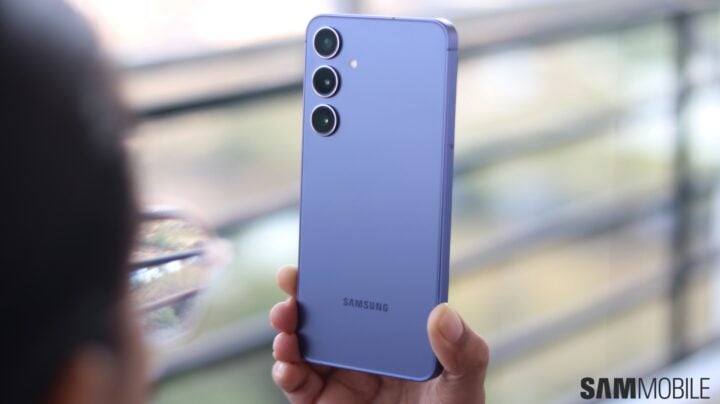
For Samsung Galaxy users, the Camera Assistant app offers a way to take photography to the next level. This innovative tool integrates seamlessly into your Galaxy’s Camera app settings, providing a suite of additional features for a more personalized and refined camera operation.
Whether you’re a seasoned photographer or just picking up Camera Assistant for the first time, there are certain settings that you simply must explore to make the most out of your photography experience.
Essential Camera Assistant Features For Samsung Galaxy
To locate these features, you can either launch the Camera Assistant app directly or navigate through the Camera app settings to the Camera Assistant section.
One vital setting to adjust is the “Auto lens switching” feature. By default, the Camera app may automatically select which lens to use based on various scene parameters such as zoom level, lighting conditions, and subject distance. Disabling this feature grants you full control over the choice of lens, ensuring that the camera adheres to your preferred settings.
Another setting to consider is “Prioritize focus over speed.” When this is turned on, the camera takes extra time to focus before capturing an image. The result is a sharper picture, though there might be a slight delay in the shutter response time. This trade-off can significantly enhance image quality, particularly in challenging shooting conditions.
The third feature, which is especially useful for those who like to record videos with their smartphones, is the “Audio monitoring” option. This setting allows users to listen to live audio through headphones or speakers while recording, providing real-time feedback on sound quality. It should be noted that currently, this feature is only available on the Galaxy S24 series, but it’s likely to be rolled out to more devices with subsequent releases of One UI updates or Camera Assistant updates.
Understanding these Camera Assistant settings can take your mobile photography game to new heights, ensuring your Galaxy device captures images just the way you want them.
For a visual guide on where to find these settings and how they work, a quick overview video is available on social platforms that can demonstrate the practical benefits these adjustments offer.