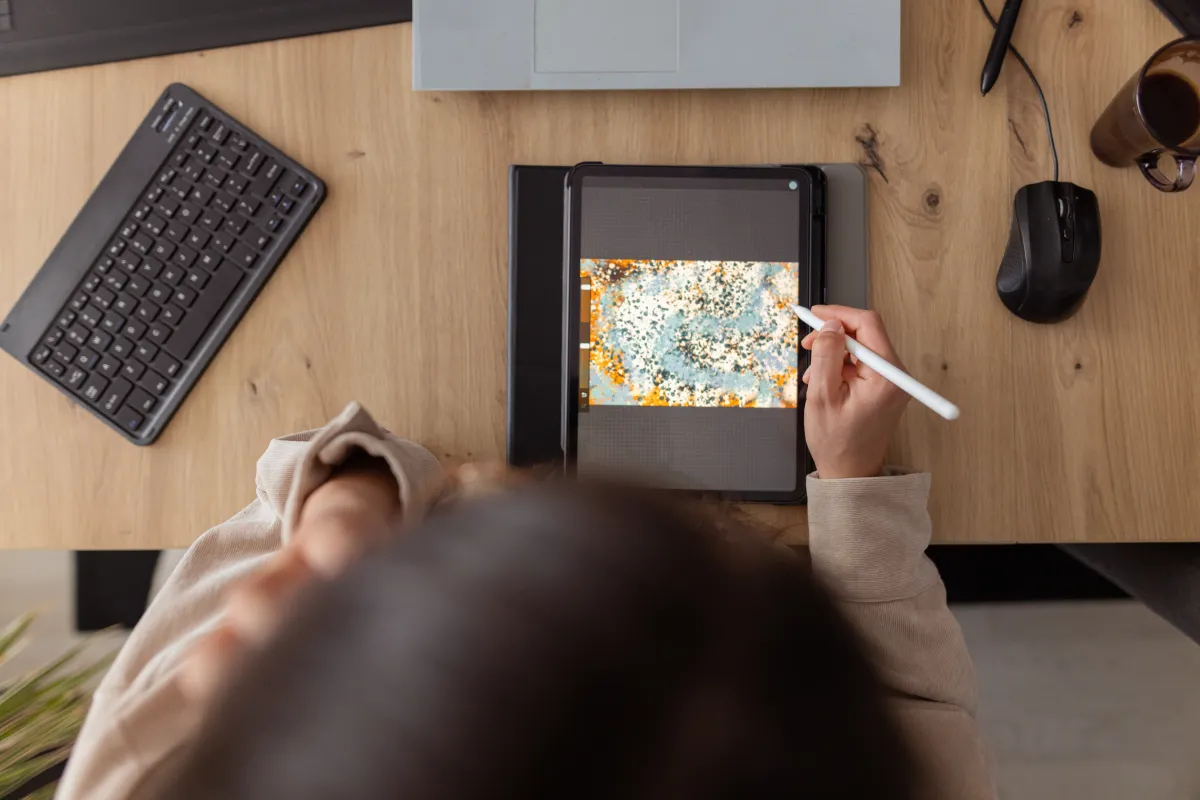
The iPad has come a long way from being a simple screen for streaming and web browsing. Today, it’s a genuinely capable creative studio you can carry anywhere, whether you’re sketching with Apple Pencil, designing brand assets, editing 4K video, or simply unwinding with a relaxing coloring session. If you want to make more art, design more often, or finally start that video project you’ve been putting off, the right iPad app can make all the difference.
Below is a handpicked list of standout iPad creativity apps available on the App Store. While many people immediately think of Adobe for creative work, this roundup focuses on other excellent options that are worth trying, including a mix of beginner-friendly tools and pro-level powerhouses.
Lake
If the idea of starting with a blank canvas feels intimidating, Lake offers a calmer, lower-pressure way to be creative. It’s a digital coloring app built around hand-drawn illustrations from independent artists. You can choose from a huge palette of more than 700 colors, experiment with different brushes, and fill in designs at your own pace.
Want more freedom? Lake also lets you draw on a blank canvas and even keep a coloring journal for thoughts and everyday reflections. It’s a strong pick for anyone looking to de-stress, ease into creativity, or enjoy a soothing creative habit without worrying about “being good at art.” There’s free access to a limited selection, and the full catalog and features require a $9.99 monthly subscription.
Procreate
Procreate has earned its reputation as one of the best iPad drawing apps, and it continues to be a go-to choice for digital painting, illustration, and sketching. It combines an approachable interface with powerful tools, dozens of brush options, and smooth gesture controls that make the whole experience feel natural on iPad.
On compatible iPad Pro models, it supports extremely high-resolution canvases up to 16K by 8K. It’s also useful beyond static art: you can create storyboards, GIFs, animatics, and simple animations. Helpful tools like QuickShape, StreamLine, Drawing Assist, and ColorDrop handle the technical cleanup so you can stay focused on the creative part.
One of Procreate’s most satisfying extras is its time-lapse Replay feature, which lets you watch your artwork come together and easily share a short clip. Procreate is available for a one-time payment of $12.99.
LumaFusion
If you’ve outgrown basic editing tools and want something more serious than entry-level video apps, LumaFusion is an excellent next step. It’s designed for creators who want a more advanced editing workflow on iPad without jumping straight to a full desktop suite.
You can build multi-layer timelines and edit 4K ProRes and HDR media, add effects, use dozens of transitions, and record voice-overs. It also supports multi-layer titles and lets you import fonts and graphics for a more polished look. For audio work, it includes tools like Graphic EQ, Parametric EQ, and voice isolation.
Another big advantage is flexibility: LumaFusion supports multiple aspect ratios, including standard landscape, vertical video, square, widescreen film, anamorphic, and more—great for everything from YouTube to short-form social content. It costs a one-time $29.99, with optional add-ons like multicam editing and the ability to send projects to Final Cut Pro on Mac.
Canva
For fast, polished design work—especially if you’re not a trained graphic designer—Canva is hard to beat. It’s built to help anyone create professional-looking visuals quickly, whether you’re making presentations, infographics, social posts, videos, simple websites, or marketing materials. With more than 250,000 templates, you can start from a strong foundation and customize from there.
Canva includes photo editing tools and options to personalize content with your own logos and images. You can also add audio, crop and adjust video speed, and handle a wide variety of everyday creative tasks in one place.
It also offers AI-powered features designed to speed up the process. Tools like Magic Switch can help extend and adapt designs, while Magic Media can turn ideas into images. Canva is free to use, with an optional $12.99 monthly subscription for expanded AI access, premium templates, and more.
Affinity Designer 2
Affinity Designer 2 is a strong choice for creators who want professional-grade graphic design on iPad. It combines vector design with pixel-based textures and retouching in a single app, making it useful across styles and industries—illustration, branding, logo design, icons, UI/UX layouts, posters, typography, concept art, and more.
It fully supports Apple Pencil precision, including pressure sensitivity and tilt, and includes gesture controls designed to speed up workflows. You can also customize keyboard shortcuts, zoom in to extreme levels for fine detail, and even create your own custom font. Affinity Designer 2 is available for a one-time payment of $18.49.
Concepts
Concepts is ideal for thinking on the screen—sketching ideas, planning layouts, building mind maps, or exploring designs before you commit to a final version. It’s especially useful when you want to iterate quickly, because it includes tools like Nudge, Slice, and Select that let you adjust parts of a sketch without starting over.
The pens, pencils, and brushes respond naturally to pressure and tilt, and the app also includes scale and measurement tools that calculate real-world dimensions. It offers a customizable tool wheel or bar so you can set up a workspace that matches your style. Concepts is free at the basic level, with a $4.99 monthly subscription available for extras such as custom brushes and premium editing tools.
Tayasui Sketches
If you want a friendly, flexible sketching app with a focus on natural tools, Tayasui Sketches is a solid option. It includes features like a realistic watercolor brush, digital acrylic brushes, and blending tools that help you dial in the exact shade you’re after. There are also gradient and depth tools to add dimension to your work.
It supports multitasking as well, letting you open another app and drag items between the two—useful for referencing images or working alongside notes. When you want fewer distractions, Zen Mode helps you focus. You can also upload images to incorporate them into your projects and organize your work in personal folders. The basic version is free, with a $2.99 monthly subscription for perks like unlimited layers, extra brushes and markers, an expanded brush editor, backups, and more.
Dudel Draw
Dudel Draw adds a fun twist to daily creativity. Instead of staring at an empty page, you get a new shape each day that becomes your starting point. Those shapes can be simple geometric forms or more abstract designs, giving you just enough structure to spark ideas without limiting what you can create.
You can flip and rotate the shape to view it from different angles, and you can also turn it into a friendly challenge by comparing daily results with friends. It’s a great way to build a consistent creative habit, experiment with new ideas, and sharpen your skills over time. Dudel Draw is free.
Sketchbook
Sketchbook is a clean, approachable drawing app built around a simple idea: make digital drawing feel as natural as drawing on paper. The brushes and pens are designed to behave like real tools, and the interface stays out of your way so you can focus on your work. Palettes and tools can be tucked away for a more distraction-free canvas.
You can customize brushes by adjusting size, opacity, flow, and other settings, and there’s a predictive stroke feature that helps smooth lines when you want a cleaner look. Sketchbook is free, with optional premium features available for a one-time payment of $2.99. Premium tools include importing extra brushes and color palettes, resizing your canvas mid-project, and exporting multiple canvases or a full album as a PDF.
This list was originally published in December 2024 and is updated regularly with new information.