A Strong Password Is No Longer Enough: How to Secure Your Online Accounts in 2026
A strong password used to feel like the gold standard of online security. Make it long, add numbers, mix in symbols, avoid obvious words, and you were mostly safe. But in 2026, that is no longer enough.
Data breaches, phishing attacks, stolen login databases, and SIM-swapping scams have changed the rules. Even the strongest password can fail if it is leaked, tricked out of you, or reused on another account. That is why two-factor authentication, passkeys, authenticator apps, and hardware security keys have become essential tools for protecting your digital life.
The good news is that improving your account security does not take hours. In many cases, you can make your most important accounts dramatically safer in just a few minutes.
Why passwords alone are not enough anymore
Passwords have three major weaknesses.
The first is data breaches. When a company is hacked, usernames and passwords can end up in criminal databases. If you used that same password on multiple websites, one breach can quickly turn into several compromised accounts.
The second is phishing. Attackers create fake login pages that look almost identical to the real thing. You think you are signing in to your email, bank, cloud storage, or social media account, but you are actually handing your password directly to a criminal.
The third is SIM swapping. In this type of attack, fraudsters take control of your mobile phone number by convincing a carrier to transfer it to a SIM card they control. Once they have your number, they may be able to receive SMS login codes and reset access to your accounts.
A strong password is still important, but it should be treated as the first layer of protection, not the entire defense.
Two-factor authentication adds a second barrier
Two-factor authentication, often called 2FA, protects your account by requiring something more than just your password. Even if someone knows your password, they still need a second form of verification.
Common 2FA methods include SMS codes, email codes, authenticator apps, passkeys, hardware security keys, banking chip-based methods, and government identity systems.
However, not all 2FA methods offer the same level of protection.
SMS and email codes are better than nothing, but they are the weakest option. They can be intercepted, stolen through phishing, or abused in SIM-swapping attacks.
Authenticator apps are stronger. Apps such as Google Authenticator, Microsoft Authenticator, Aegis, and similar tools generate temporary login codes directly on your device. These codes usually change every 30 seconds and do not rely on your mobile network, making them safer than SMS.
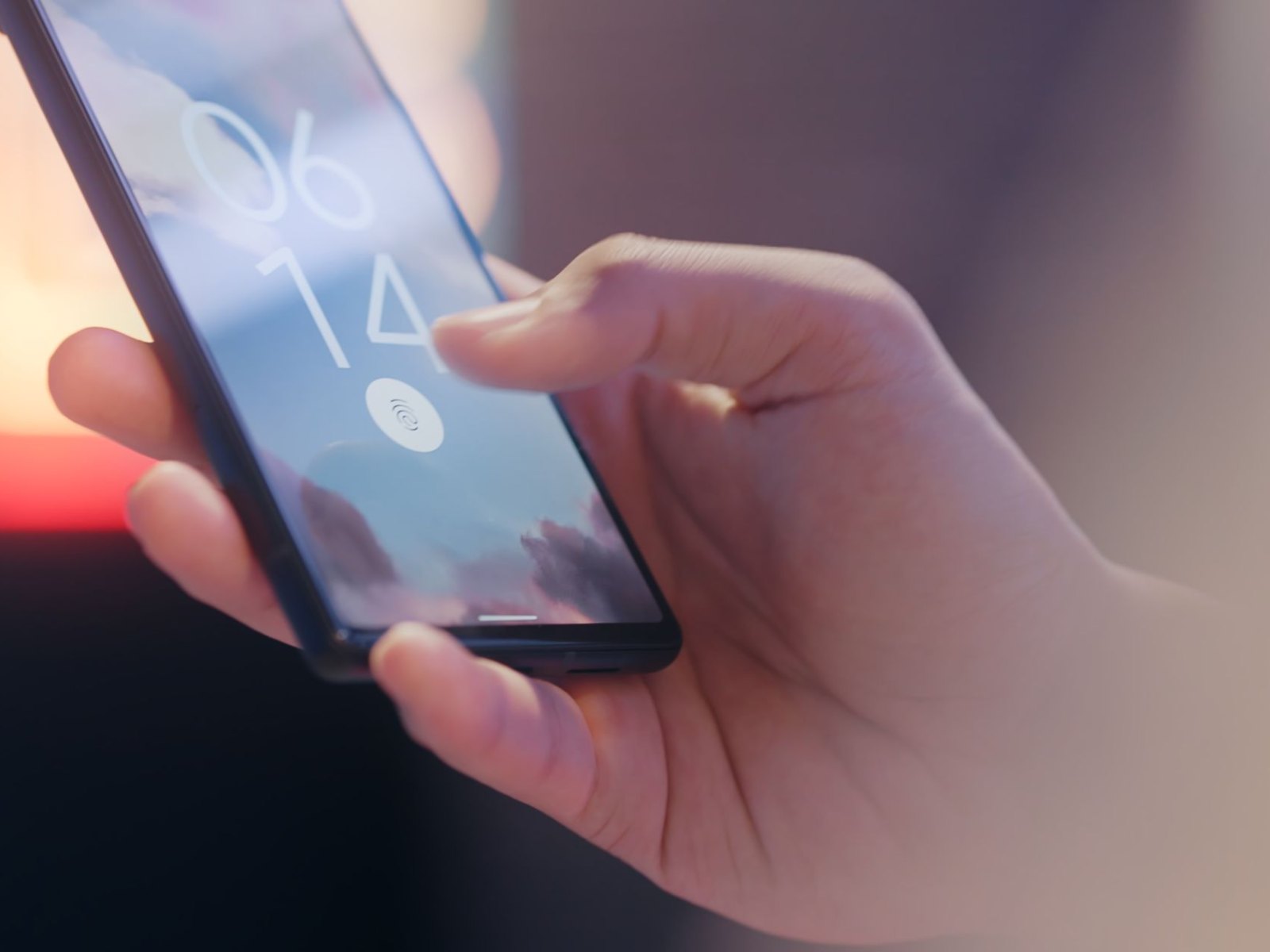
Passkeys are even better. Instead of typing a password or entering a code, you unlock your login using your fingerprint, face recognition, or device PIN. Behind the scenes, a cryptographic key verifies your identity. The private key stays on your device and is not shared with the website.
Hardware security keys offer a similar level of protection in a separate physical device. These small USB, NFC, or USB-C keys are used during login and are especially useful for protecting your most sensitive accounts.
Why passkeys are one of the best security upgrades
Passkeys are becoming one of the most important account security technologies because they are both secure and easy to use.
With a passkey, you do not need to remember or type a password for supported services. You simply confirm the login with your fingerprint, face scan, or device PIN. This makes logging in faster while also protecting you from many phishing attacks.
The biggest advantage is that passkeys are tied to the legitimate website or app. If a criminal creates a fake login page, your passkey will not work there. That means you cannot accidentally give away your login credentials in the same way you might with a password or one-time code.
Passkeys are supported on modern iPhones, Android phones, Windows PCs, Macs, and major browsers. Many large online services already support them, and adoption is growing quickly.
For most people, passkeys offer the best mix of convenience and strong security.
How to set up passkeys
Setting up a passkey is usually simple.
Open the security settings of the account you want to protect. Look for options such as “Passkeys,” “Passwordless sign-in,” “Security keys,” or “Sign-in methods.” Then choose to create a passkey.
Your device will ask you to confirm your identity using fingerprint recognition, face recognition, or your device PIN. Once saved, that device can be used to sign in securely without entering a traditional password.
Start with your most important accounts first, especially your email account, password manager, cloud storage, financial accounts, and primary work accounts.
If a service does not support passkeys yet, use an authenticator app instead of SMS whenever possible.
Authenticator apps are still a smart upgrade
An authenticator app is a practical and widely supported way to improve online account security.
After installing an authenticator app, you go to the security settings of the account you want to protect. The service will usually show a QR code. You scan that code with the authenticator app, and the app begins generating temporary login codes.
From then on, when you sign in, you enter your password and the current code from the app.
Authenticator apps are not as phishing-resistant as passkeys or hardware security keys, because a fake website can still ask you to type in the code. But they are much safer than SMS because they are not tied to your phone number.
If your choice is between SMS and an authenticator app, choose the authenticator app.
When to use a hardware security key
A hardware security key is a small physical device used to confirm logins. You may plug it into your computer, tap it on your phone using NFC, or connect it through USB-C, depending on the model.
Hardware keys are especially useful for your most important accounts. Your email account is the best place to start because it is often the gateway to everything else. If someone controls your email, they may be able to reset passwords for your banking, shopping, social media, and cloud accounts.
A hardware security key helps prevent that. Even if an attacker steals your password, they cannot log in without the physical key.
For journalists, business owners, IT administrators, cryptocurrency users, activists, executives, and anyone at higher risk of targeted attacks, hardware security keys are strongly worth considering.
It is also wise to buy two keys. Use one as your main key and keep the second in a safe place as a backup.
Recovery options matter more than many people realize
One of the most overlooked parts of account security is recovery.
If you lose your phone, delete your authenticator app, replace your computer, or misplace a hardware key, you need a safe way to regain access. But recovery can also become a weak point if it is too easy.
For example, if an account lets you bypass strong two-factor authentication with a simple email reset, then your security depends heavily on the safety of that email account.
When setting up 2FA, save your backup codes. Most services provide one-time recovery codes during setup. Store them somewhere safe, such as an offline location or a trusted password manager.
Do not keep recovery codes in an unprotected note on your phone or in your email inbox.
If you use hardware security keys, register at least two keys whenever the service allows it. That way, losing one key does not lock you out permanently.
The best security setup for most people
For everyday users, the best approach is simple:
Use a password manager to create strong, unique passwords for every account.
Enable passkeys wherever they are available.
Use an authenticator app when passkeys are not supported.
Avoid SMS-based two-factor authentication unless it is the only option.
Protect your main email account with the strongest method available, ideally a passkey or hardware security key.
Save backup codes securely.
Review your recovery options so attackers cannot bypass your protection easily.
This setup gives you strong protection against password leaks, phishing, SIM swapping, and account takeover attempts.
What should you secure first?
If you do not want to update every account at once, start with the accounts that matter most.
Your email account should be first because it is commonly used for password resets. Next, secure your password manager, banking apps, cloud storage, mobile carrier account, social media accounts, shopping accounts, and work-related accounts.
These accounts often contain sensitive personal information or can be used to take over other services.
Final thoughts
Passwords are not dead, but they are no longer enough on their own. Data breaches and phishing attacks have made single-password protection too risky, even for careful users.
Passkeys, authenticator apps, and hardware security keys give you a much stronger defense. Passkeys are the best choice for most people because they are secure, fast, and easy to use. Authenticator apps are a strong fallback when passkeys are unavailable. Hardware security keys are ideal for your most sensitive accounts.
The effort is small, but the security improvement is huge. A few minutes spent upgrading your login protection today can prevent a major account takeover tomorrow.